
What you will learn
- How boot order and USB permissions control what can start
- BIOS (supervisor) password vs boot (power-on) password
- What Secure Boot checks, and why Windows 11 needs it
- What a TPM does for BitLocker, and how an HSM differs
- Turning on virtualization, and watching temperatures and fans
PRACTICE TESTS
Ready to drill it?
Practice tests for CompTIA A+ Core 1 and Core 2, every answer explained and checked against published sources. $19.95 for 30 days, plus sales tax where it applies; one payment, nothing renews.
See the 30-day passCheat sheet
Everything in this lesson on one page. Free to save, print and share.
Download the cheat sheet (PNG)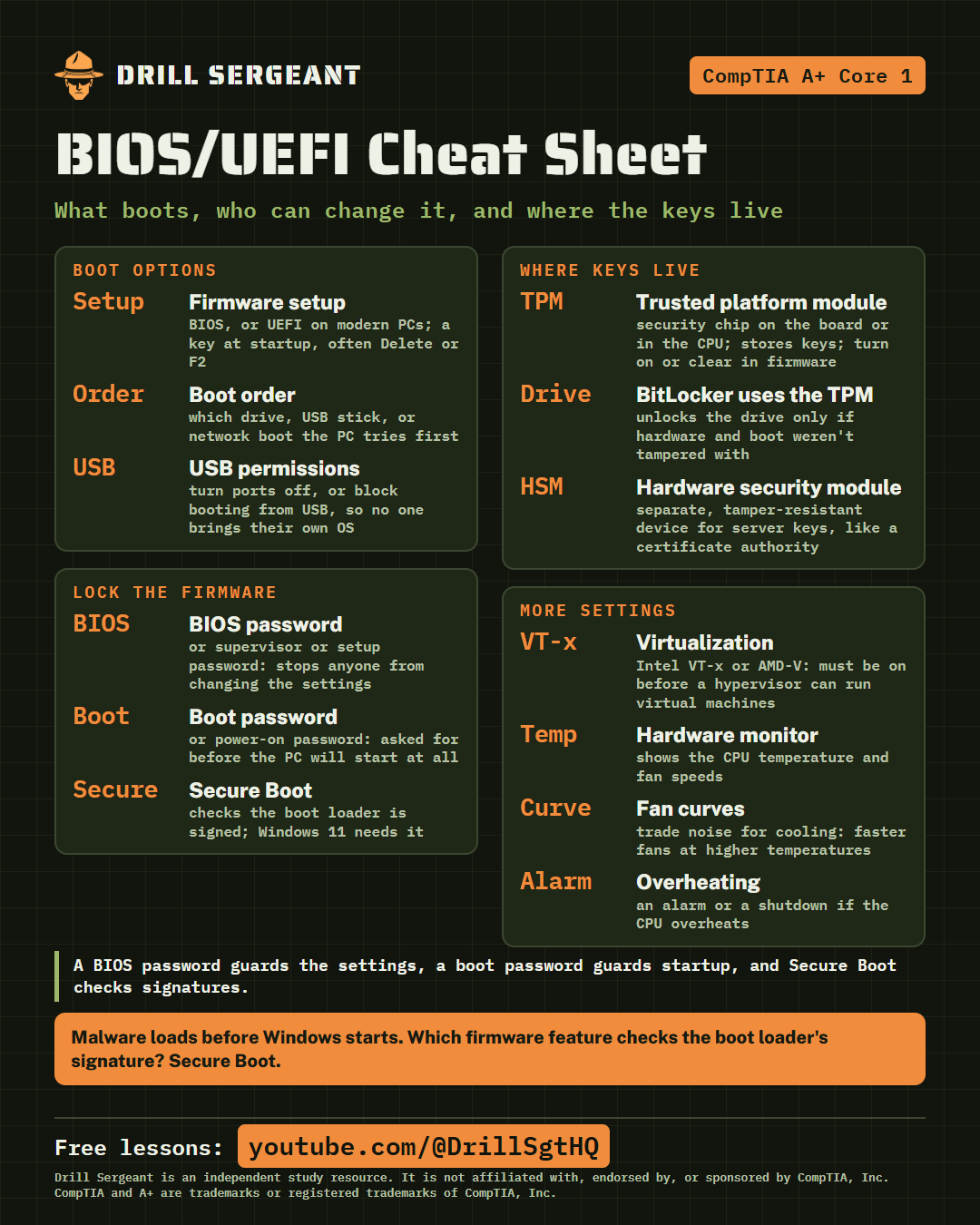
Cheat sheet as text
BIOS/UEFI Cheat Sheet
What boots, who can change it, and where the keys live
Boot options
- Setup — Firmware setup: BIOS, or UEFI on modern PCs; a key at startup, often Delete or F2
- Order — Boot order: which drive, USB stick, or network boot the PC tries first
- USB — USB permissions: turn ports off, or block booting from USB, so no one brings their own OS
Lock the firmware
- BIOS — BIOS password: or supervisor or setup password: stops anyone from changing the settings
- Boot — Boot password: or power-on password: asked for before the PC will start at all
- Secure — Secure Boot: checks the boot loader is signed; Windows 11 needs it
Where keys live
- TPM — Trusted platform module: security chip on the board or in the CPU; stores keys; turn on or clear in firmware
- Drive — BitLocker uses the TPM: unlocks the drive only if hardware and boot weren't tampered with
- HSM — Hardware security module: separate, tamper-resistant device for server keys, like a certificate authority
More settings
- VT-x — Virtualization: Intel VT-x or AMD-V: must be on before a hypervisor can run virtual machines
- Temp — Hardware monitor: shows the CPU temperature and fan speeds
- Curve — Fan curves: trade noise for cooling: faster fans at higher temperatures
- Alarm — Overheating: an alarm or a shutdown if the CPU overheats
A BIOS password guards the settings, a boot password guards startup, and Secure Boot checks signatures.
Malware loads before Windows starts. Which firmware feature checks the boot loader's signature? Secure Boot.
Chapters
Exam objectives covered
- Core 1 (220-1201) objective 3.5, Hardware
Transcript
Read the full lesson narration
Boot options and USB permissions
Before the operating system loads, the firmware is in charge. Its settings decide what boots, who can change them, and how well the hardware protects your data.
The firmware setup is the BIOS, or on modern PCs its replacement, UEFI. You open it with a key at startup, often Delete or F2. The boot options set the boot order: which drive, USB stick, or network boot the PC tries first. And USB permissions can turn ports off, or block booting from USB, so nobody walks in with their own operating system.
BIOS and boot passwords, Secure Boot
Two passwords protect the firmware. A BIOS password, also called a supervisor or setup password, stops anyone from changing the settings. A boot password, or power-on password, is asked for before the PC will start at all. And Secure Boot checks that the boot loader is signed by a trusted publisher, so a rootkit can't load before the operating system does. Windows eleven needs a PC that supports it.
TPM and HSM
A TPM, a trusted platform module, is a security chip on the motherboard, or built into the CPU. It stores encryption keys, so BitLocker can unlock the drive only when the hardware and the boot process haven't been tampered with. In the firmware you can turn the TPM on, or clear it. An HSM, a hardware security module, does the same job at a larger scale: a separate, tamper-resistant device that stores keys and does encryption for servers, like a certificate authority.
Virtualization, fans and temperatures
Two more settings round it out. Virtualization support, called Intel VT-x or AMD-V, must be turned on in the firmware before a hypervisor can run virtual machines. And the hardware monitor shows the CPU temperature and fan speeds, with fan curves that trade noise for cooling, and an alarm or a shutdown if the CPU overheats.
Quick drill and recap
Drill time. Say the answer before I do. A user boots an office PC from their own USB drive. Which settings stop that? Blocking USB boot and a BIOS password. Malware loads before Windows starts. Which firmware feature checks the boot loader's signature? Secure Boot. Hyper-V won't start a virtual machine. What do you turn on in the firmware? Virtualization support. BitLocker uses a chip on the motherboard to protect its keys. What is it? A TPM. A certificate authority needs a dedicated, tamper-resistant device for its keys. What is it? An HSM.
Lock in these four. One. The boot order and USB permissions decide what can start. Two. A BIOS password guards the settings, a boot password guards startup, and Secure Boot checks signatures. Three. A TPM keeps keys on the board; an HSM does it for servers. Four. Turn on virtualization, and watch temperatures and fans.
That's firmware settings. Now go prove it. Practice questions are waiting for you in Drill Sergeant.
PRACTICE TESTS
Ready to drill it?
Practice tests for CompTIA A+ Core 1 and Core 2, every answer explained and checked against published sources. $19.95 for 30 days, plus sales tax where it applies; one payment, nothing renews.
See the 30-day passRelated lessons
Found a mistake in a lesson? Email support@drillsgthq.com with the lesson and what is wrong.
Drill Sergeant is an independent study resource. It is not affiliated with, endorsed by, or sponsored by CompTIA, Inc. CompTIA and A+ are trademarks or registered trademarks of CompTIA, Inc.