
What you will learn
- What grinding and clicking mean, and why to power down first
- Reading status LEDs and RAID audible alarms
- S.M.A.R.T. warnings, slow reads and writes, low IOPS and corruption
- Fixing bootable device not found and drives missing in the OS
- Degraded and missing arrays, rebuilding, and why RAID is not a backup
PRACTICE TESTS
Ready to drill it?
Practice tests for CompTIA A+ Core 1 and Core 2, every answer explained and checked against published sources. $19.95 for 30 days, plus sales tax where it applies; one payment, nothing renews.
See the 30-day passCheat sheet
Everything in this lesson on one page. Free to save, print and share.
Download the cheat sheet (PNG)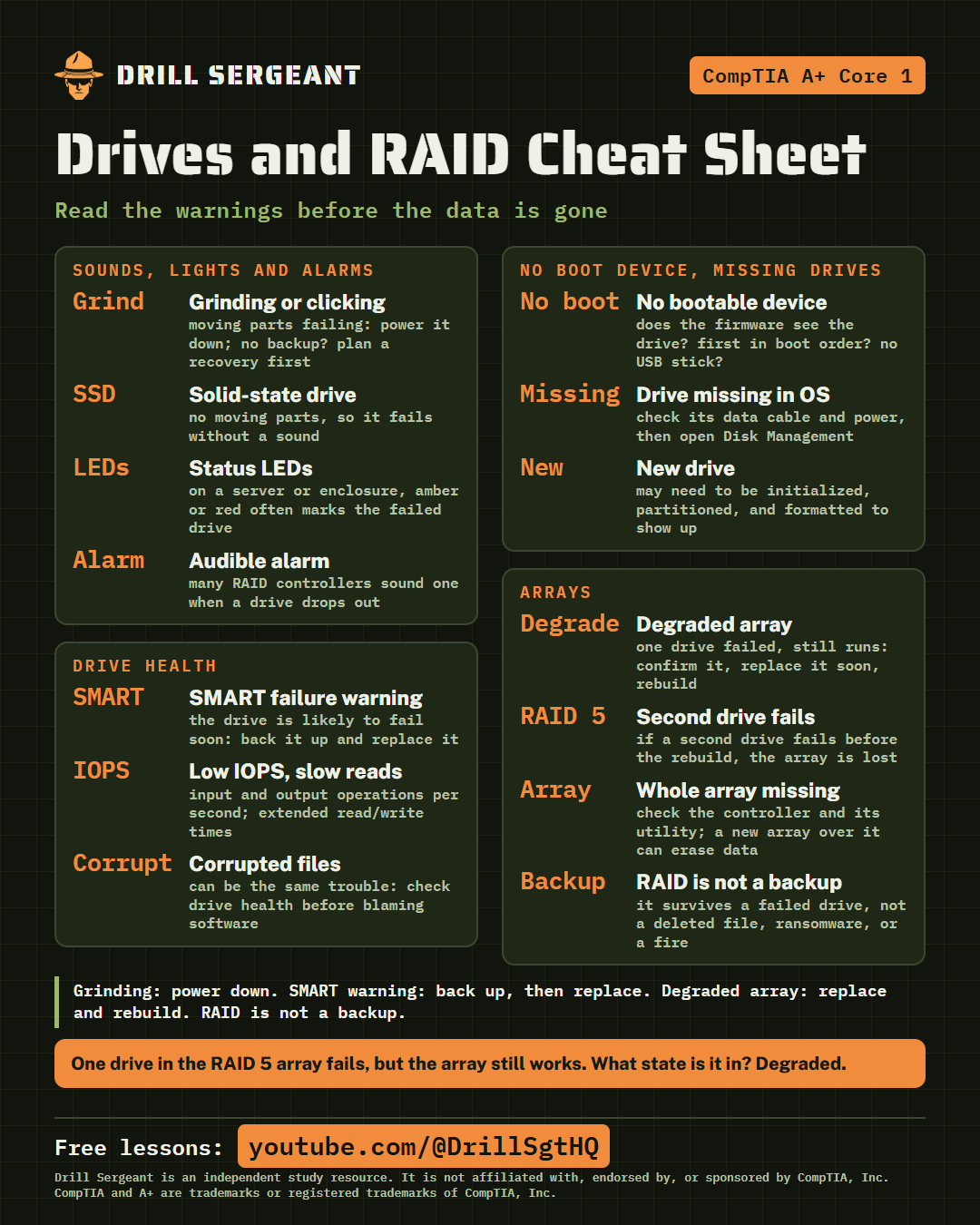
Cheat sheet as text
Drives and RAID Cheat Sheet
Read the warnings before the data is gone
Sounds, lights and alarms
- Grind — Grinding or clicking: moving parts failing: power it down; no backup? plan a recovery first
- SSD — Solid-state drive: no moving parts, so it fails without a sound
- LEDs — Status LEDs: on a server or enclosure, amber or red often marks the failed drive
- Alarm — Audible alarm: many RAID controllers sound one when a drive drops out
Drive health
- SMART — SMART failure warning: the drive is likely to fail soon: back it up and replace it
- IOPS — Low IOPS, slow reads: input and output operations per second; extended read/write times
- Corrupt — Corrupted files: can be the same trouble: check drive health before blaming software
No boot device, missing drives
- No boot — No bootable device: does the firmware see the drive? first in boot order? no USB stick?
- Missing — Drive missing in OS: check its data cable and power, then open Disk Management
- New — New drive: may need to be initialized, partitioned, and formatted to show up
Arrays
- Degrade — Degraded array: one drive failed, still runs: confirm it, replace it soon, rebuild
- RAID 5 — Second drive fails: if a second drive fails before the rebuild, the array is lost
- Array — Whole array missing: check the controller and its utility; a new array over it can erase data
- Backup — RAID is not a backup: it survives a failed drive, not a deleted file, ransomware, or a fire
Grinding: power down. SMART warning: back up, then replace. Degraded array: replace and rebuild. RAID is not a backup.
One drive in the RAID 5 array fails, but the array still works. What state is it in? Degraded.
Chapters
Exam objectives covered
- Core 1 (220-1201) objective 5.2, Hardware and Network Troubleshooting
Transcript
Read the full lesson narration
Sounds, lights and alarms
A failing drive or array usually warns you before the data is gone. Here's how to read the warnings, and what to do about each one.
Listen and look first. Grinding or clicking from a hard drive means its moving parts are failing. Power it down, and if the data isn't backed up, plan a recovery before you run it again. Solid-state drives have no moving parts, so they fail without a sound. On a server or a drive enclosure, status LEDs show which drive has failed, often amber or red. And many RAID controllers sound an audible alarm when a drive drops out.
S.M.A.R.T., slow drives and corruption
Drives also report on themselves. SMART, self-monitoring, analysis, and reporting technology, tracks errors and wear. A SMART failure warning means the drive is likely to fail soon, so back it up and replace it. Extended read and write times, low IOPS, which is input and output operations per second, and files that come back corrupted can be signs of the same trouble. Check the drive's health before you blame the software.
No boot device and missing drives
If the computer says no bootable device was found, check that the firmware still sees the drive, and that it's first in the boot order. A forgotten USB stick can get in the way. If a drive is missing in the operating system, check its data cable and power, then open Disk Management. A new drive may need to be initialized, partitioned, and formatted before it shows up.
Degraded and missing arrays
Arrays add their own problems. When one drive in a redundant array fails, the array keeps running in a degraded state. Confirm the failed drive in the controller's tools, replace it soon, and let the array rebuild. If a second drive fails first, a RAID 5 array is lost. If the whole array is missing, check the RAID controller and its configuration utility, and don't create a new array over it, which can erase the data. And remember, RAID is not a backup.
Quick drill and recap
Drill time. Say the answer before I do. A hard drive starts clicking and grinding. What do you do first? Power it down. A drive's self-monitoring predicts it will fail soon. What is that warning called? A SMART failure. One drive in the RAID 5 array fails, but the array still works. What state is it in? Degraded. A new second drive doesn't appear in File Explorer. Where do you initialize it? Disk Management. A server beeps, and one drive tray shows an amber light. What does that point to? A failed drive.
Lock in these four. One. Grinding or clicking: power down, protect the data, then replace the drive. Two. SMART warnings, slow reads, low IOPS, and corrupted files: back up, then replace. Three. No boot device: the firmware and boot order. A missing drive: cables, then Disk Management. Four. A degraded array: replace the drive and rebuild, and RAID is not a backup.
That's troubleshooting drives and RAID. Now go prove it. Practice questions are waiting for you in Drill Sergeant.
PRACTICE TESTS
Ready to drill it?
Practice tests for CompTIA A+ Core 1 and Core 2, every answer explained and checked against published sources. $19.95 for 30 days, plus sales tax where it applies; one payment, nothing renews.
See the 30-day passRelated lessons
Found a mistake in a lesson? Email support@drillsgthq.com with the lesson and what is wrong.
Drill Sergeant is an independent study resource. It is not affiliated with, endorsed by, or sponsored by CompTIA, Inc. CompTIA and A+ are trademarks or registered trademarks of CompTIA, Inc.