
What you will learn
- How to unbox, place and update a new printer
- PCL vs PostScript drivers
- USB, Ethernet and wireless, printer shares and print servers
- Duplex, orientation, tray and quality settings
- Badging, secured prints and audit logs; scanning to email, SMB or the cloud
PRACTICE TESTS
Ready to drill it?
Practice tests for CompTIA A+ Core 1 and Core 2, every answer explained and checked against published sources. $19.95 for 30 days, plus sales tax where it applies; one payment, nothing renews.
See the 30-day passCheat sheet
Everything in this lesson on one page. Free to save, print and share.
Download the cheat sheet (PNG)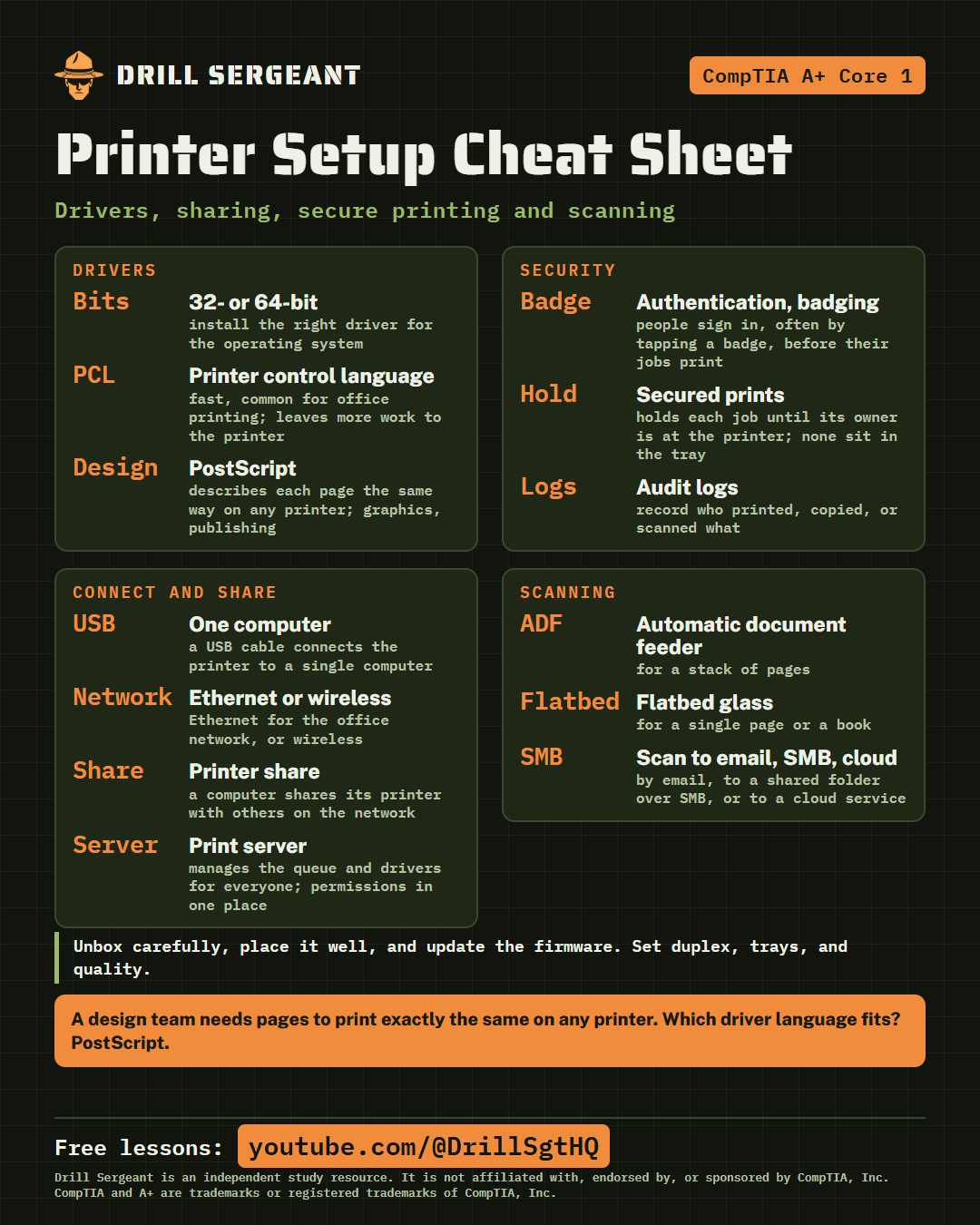
Cheat sheet as text
Printer Setup Cheat Sheet
Drivers, sharing, secure printing and scanning
Drivers
- Bits — 32- or 64-bit: install the right driver for the operating system
- PCL — Printer control language: fast, common for office printing; leaves more work to the printer
- Design — PostScript: describes each page the same way on any printer; graphics, publishing
Connect and share
- USB — One computer: a USB cable connects the printer to a single computer
- Network — Ethernet or wireless: Ethernet for the office network, or wireless
- Share — Printer share: a computer shares its printer with others on the network
- Server — Print server: manages the queue and drivers for everyone; permissions in one place
Security
- Badge — Authentication, badging: people sign in, often by tapping a badge, before their jobs print
- Hold — Secured prints: holds each job until its owner is at the printer; none sit in the tray
- Logs — Audit logs: record who printed, copied, or scanned what
Scanning
- ADF — Automatic document feeder: for a stack of pages
- Flatbed — Flatbed glass: for a single page or a book
- SMB — Scan to email, SMB, cloud: by email, to a shared folder over SMB, or to a cloud service
Unbox carefully, place it well, and update the firmware. Set duplex, trays, and quality.
A design team needs pages to print exactly the same on any printer. Which driver language fits? PostScript.
Chapters
Exam objectives covered
- Core 1 (220-1201) objective 3.7, Hardware
Transcript
Read the full lesson narration
Unboxing, location and firmware
A printer is a computer on the network, with paper. Set it up right once, and people stop calling about it.
Start with the box. Unbox it carefully, and remove all the packing tape and shipping locks. If it arrived cold, let it warm to room temperature before you power it on. Choose a spot with ventilation, a nearby outlet, and a network jack, away from heat and dust. Then update the firmware, the printer's own software, to fix bugs and security holes.
Drivers: PCL vs PostScript
Next, install the right driver for the operating system, including whether it's thirty two or sixty four bit. Drivers also speak a page description language. PCL, printer control language, is fast and common for office printing, and leaves more of the work to the printer. PostScript describes each page the same way on any printer, so it suits graphics and publishing.
Connections, shares and print servers
A printer connects by USB, for one computer; by Ethernet, for the office network; or by wireless. To share it, a computer can share its printer with others on the network. Or a print server manages the queue and the drivers for everyone, which keeps drivers and permissions in one place.
Duplex, orientation, trays, quality
Configuration settings shape every job. Duplex prints on both sides of the page. Orientation is portrait or landscape. Tray settings pick the paper source and size. And quality trades speed and toner for sharpness.
Secure printing
Shared printers need security too. User authentication and badging make people sign in, often by tapping a badge, before their jobs print. Secured prints hold each job until its owner is standing at the printer, so confidential pages don't sit in the tray. And audit logs record who printed, copied, or scanned what.
Scanning: ADF, flatbed, destinations
Multifunction devices scan, too. A stack of pages goes in the automatic document feeder; a single page or a book goes on the flatbed glass. Scans can be sent by email, to a shared folder over SMB, or to a cloud service.
Quick drill and recap
Drill time. Say the answer before I do. A design team needs pages to print exactly the same on any printer. Which driver language fits? PostScript. Confidential reports keep piling up in the output tray. What feature fixes that? Secured prints. Twenty users need one printer with central drivers and one queue. What do you set up? A print server. A scanned stack must land in a shared network folder. Which protocol sends it there? SMB. Shipped in winter, a new printer sits on the loading dock. What should you do before powering it on? Let it warm to room temperature.
Lock in these four. One. Unbox carefully, place it well, and update the firmware. Two. Pick the right driver: PCL for speed, PostScript for exact pages. Three. Connect by USB, Ethernet, or wireless, and share it or use a print server. Four. Set duplex, trays, and quality; protect it with badges, secured prints, and logs; and scan to email, SMB, or the cloud.
That's printer setup. Now go prove it. Practice questions are waiting for you in Drill Sergeant.
PRACTICE TESTS
Ready to drill it?
Practice tests for CompTIA A+ Core 1 and Core 2, every answer explained and checked against published sources. $19.95 for 30 days, plus sales tax where it applies; one payment, nothing renews.
See the 30-day passRelated lessons
Found a mistake in a lesson? Email support@drillsgthq.com with the lesson and what is wrong.
Drill Sergeant is an independent study resource. It is not affiliated with, endorsed by, or sponsored by CompTIA, Inc. CompTIA and A+ are trademarks or registered trademarks of CompTIA, Inc.