CompTIA A+ cheat sheets

One page per topic, each made from one of our free video lessons. Save the image, print it, or read the text version under each sheet. Checked against published sources.

Start here

Foundations that make everything after them easier. · 3 sheets

The OSI Model Explained cheat sheet
Cheat sheet as text

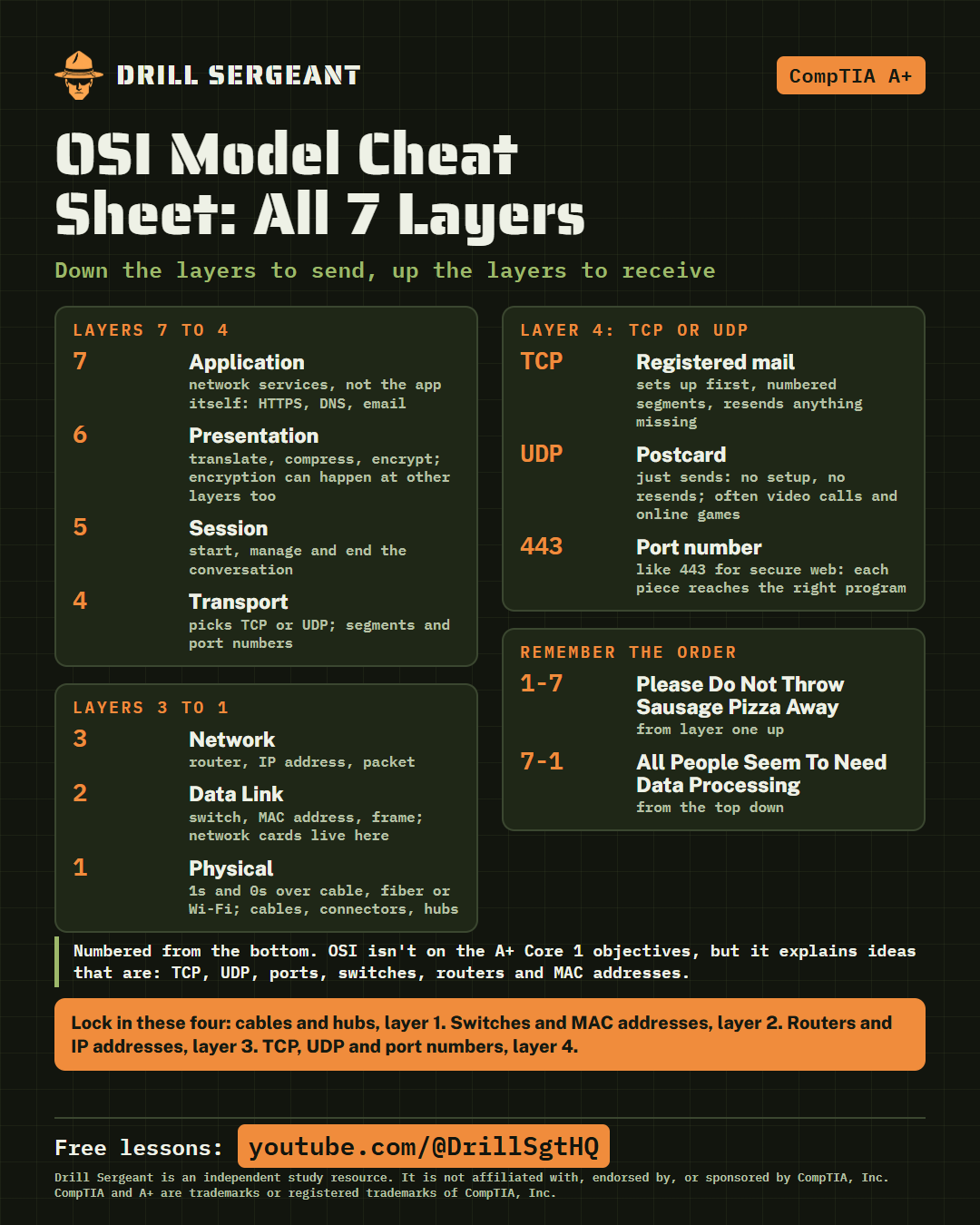
OSI Model Cheat Sheet: All 7 Layers
Down the layers to send, up the layers to receive

Layers 7 to 4

KeyMeaningNote
7Applicationnetwork services, not the app itself: HTTPS, DNS, email
6Presentationtranslate, compress, encrypt; encryption can happen at other layers too
5Sessionstart, manage and end the conversation
4Transportpicks TCP or UDP; segments and port numbers

Layers 3 to 1

KeyMeaningNote
3Networkrouter, IP address, packet
2Data Linkswitch, MAC address, frame; network cards live here
1Physical1s and 0s over cable, fiber or Wi-Fi; cables, connectors, hubs

Layer 4: TCP or UDP

KeyMeaningNote
TCPRegistered mailsets up first, numbered segments, resends anything missing
UDPPostcardjust sends: no setup, no resends; often video calls and online games
443Port numberlike 443 for secure web: each piece reaches the right program

Remember the order

KeyMeaningNote
1-7Please Do Not Throw Sausage Pizza Awayfrom layer one up
7-1All People Seem To Need Data Processingfrom the top down

Numbered from the bottom. OSI isn't on the A+ Core 1 objectives, but it explains ideas that are: TCP, UDP, ports, switches, routers and MAC addresses.

Lock in these four: cables and hubs, layer 1. Switches and MAC addresses, layer 2. Routers and IP addresses, layer 3. TCP, UDP and port numbers, layer 4.

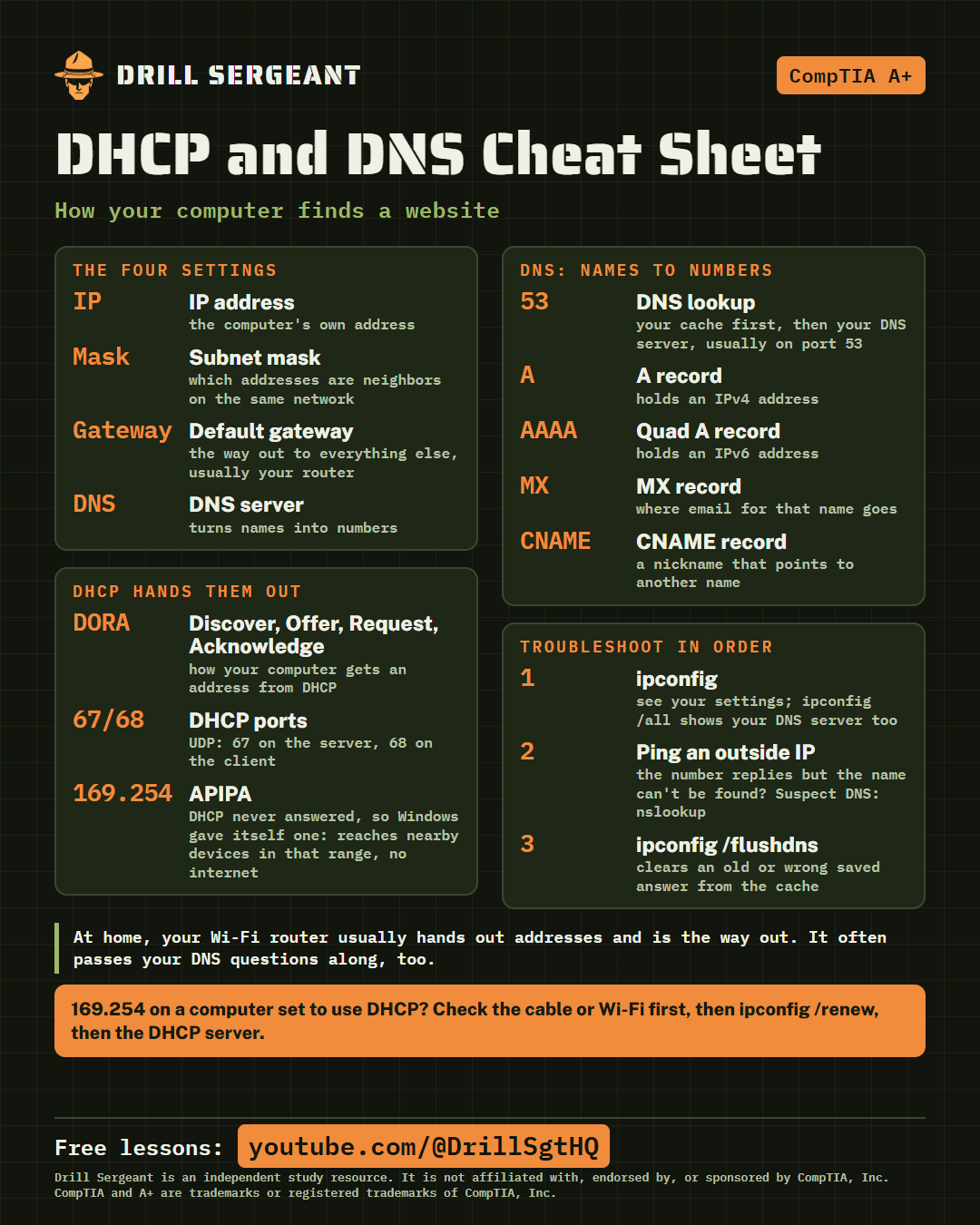
How Your Computer Finds a Website cheat sheet
Cheat sheet as text

DHCP and DNS Cheat Sheet
How your computer finds a website

The four settings

  • IP — IP address: the computer's own address
  • Mask — Subnet mask: which addresses are neighbors on the same network
  • Gateway — Default gateway: the way out to everything else, usually your router
  • DNS — DNS server: turns names into numbers

DHCP hands them out

KeyMeaningNote
DORADiscover, Offer, Request, Acknowledgehow your computer gets an address from DHCP
67/68DHCP portsUDP: 67 on the server, 68 on the client
169.254APIPADHCP never answered, so Windows gave itself one: reaches nearby devices in that range, no internet

DNS: names to numbers

KeyMeaningNote
53DNS lookupyour cache first, then your DNS server, usually on port 53
AA recordholds an IPv4 address
AAAAQuad A recordholds an IPv6 address
MXMX recordwhere email for that name goes
CNAMECNAME recorda nickname that points to another name

Troubleshoot in order

KeyMeaningNote
1ipconfigsee your settings; ipconfig /all shows your DNS server too
2Ping an outside IPthe number replies but the name can't be found? Suspect DNS: nslookup
3ipconfig /flushdnsclears an old or wrong saved answer from the cache

At home, your Wi-Fi router usually hands out addresses and is the way out. It often passes your DNS questions along, too.

169.254 on a computer set to use DHCP? Check the cable or Wi-Fi first, then ipconfig /renew, then the DHCP server.

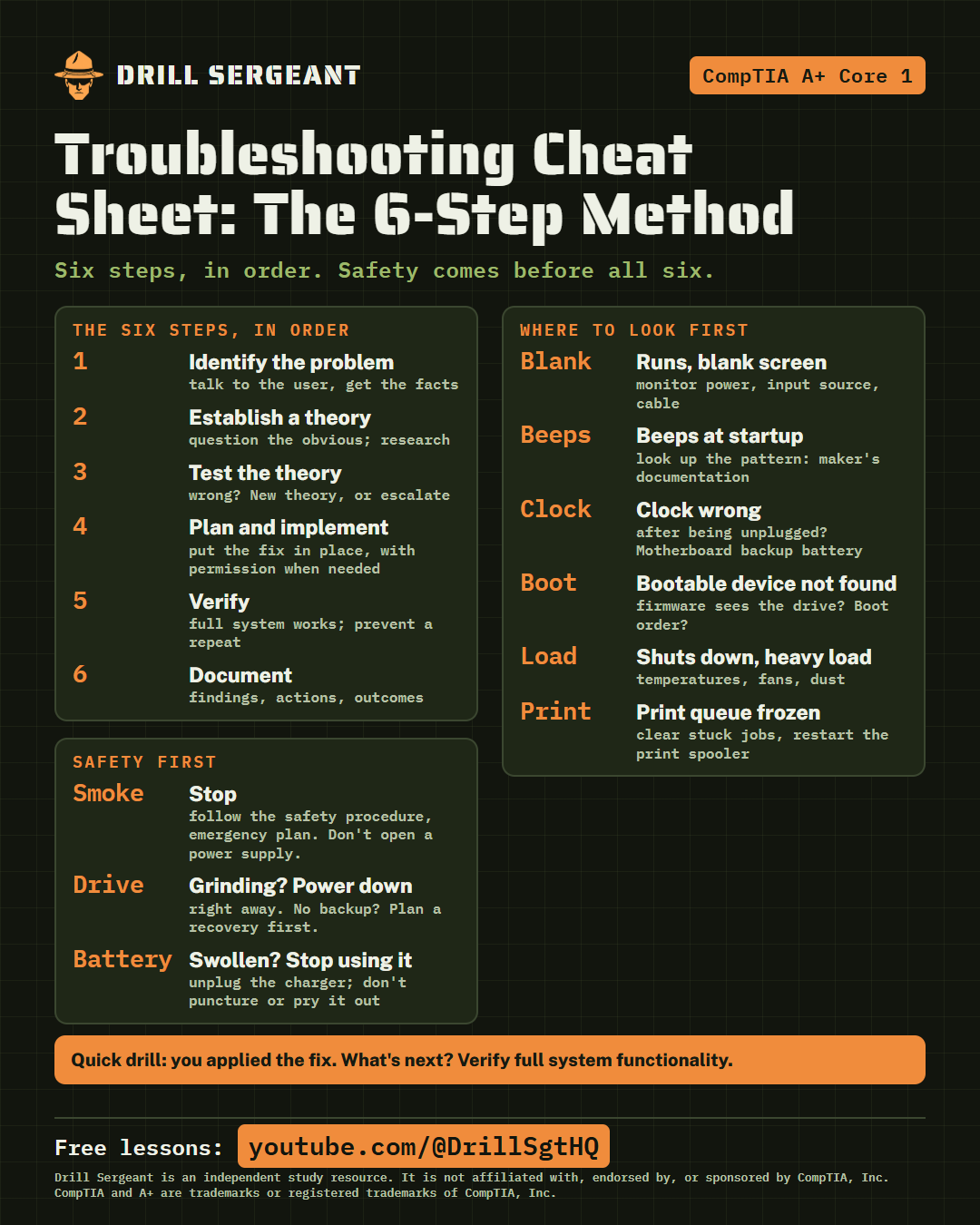
How to Troubleshoot Anything cheat sheet
Cheat sheet as text

Troubleshooting Cheat Sheet: The 6-Step Method
Six steps, in order. Safety comes before all six.

The six steps, in order

KeyMeaningNote
1Identify the problemtalk to the user, get the facts
2Establish a theoryquestion the obvious; research
3Test the theorywrong? New theory, or escalate
4Plan and implementput the fix in place, with permission when needed
5Verifyfull system works; prevent a repeat
6Documentfindings, actions, outcomes

Safety first

  • Smoke — Stop: follow the safety procedure, emergency plan. Don't open a power supply.
  • Drive — Grinding? Power down: right away. No backup? Plan a recovery first.
  • Battery — Swollen? Stop using it: unplug the charger; don't puncture or pry it out

Where to look first

  • Blank — Runs, blank screen: monitor power, input source, cable
  • Beeps — Beeps at startup: look up the pattern: maker's documentation
  • Clock — Clock wrong: after being unplugged? Motherboard backup battery
  • Boot — Bootable device not found: firmware sees the drive? Boot order?
  • Load — Shuts down, heavy load: temperatures, fans, dust
  • Print — Print queue frozen: clear stuck jobs, restart the print spooler

Quick drill: you applied the fix. What's next? Verify full system functionality.

Core 1: Mobile Devices

CompTIA A+ 220-1201, domain 1.0 · 3 sheets

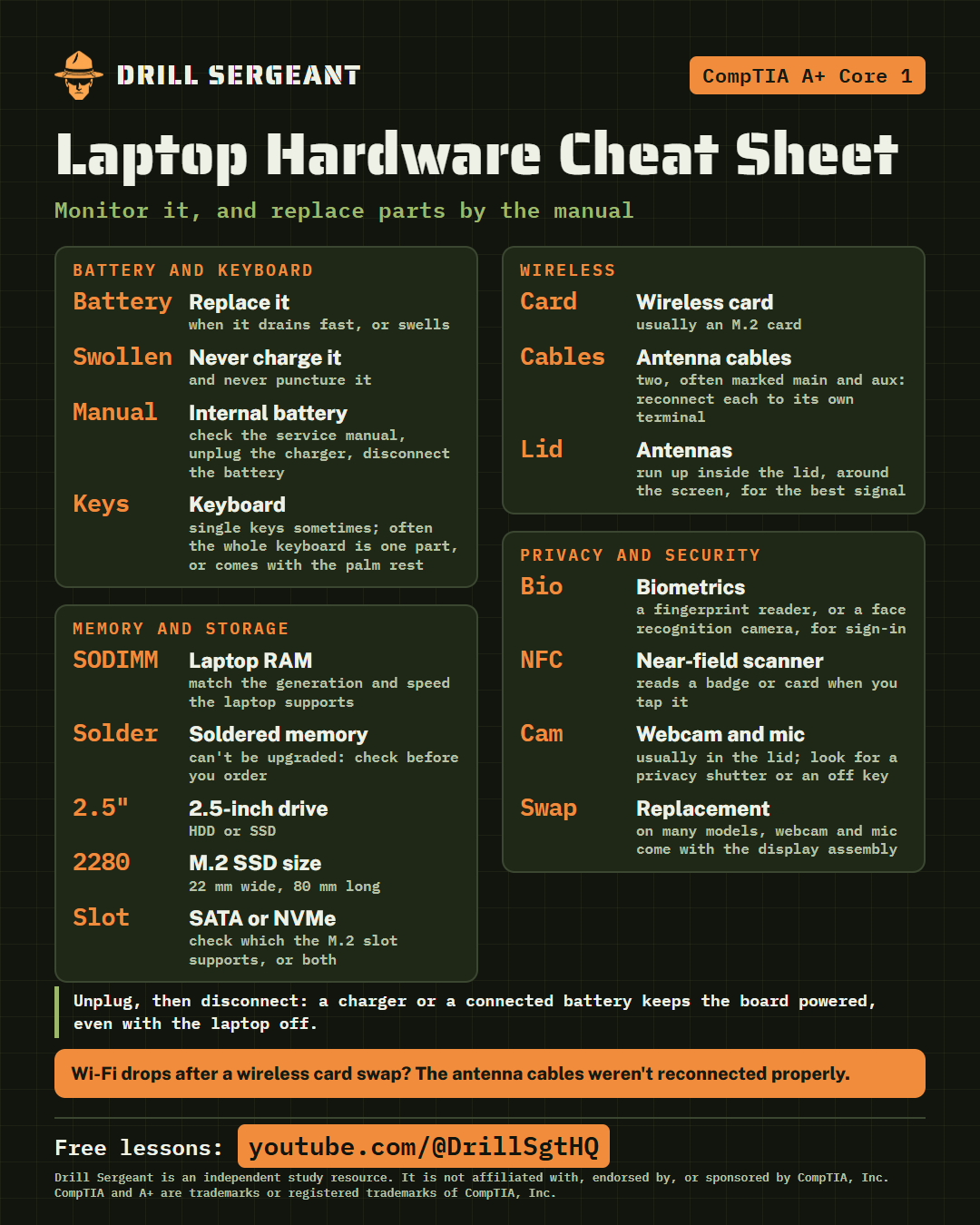
Laptop Hardware: Battery, Keyboard, RAM, SSD, Wireless Card and Antennas, Biometrics, NFC, Webcam and Microphone cheat sheet
Cheat sheet as text

Laptop Hardware Cheat Sheet
Monitor it, and replace parts by the manual

Battery and keyboard

  • Battery — Replace it: when it drains fast, or swells
  • Swollen — Never charge it: and never puncture it
  • Manual — Internal battery: check the service manual, unplug the charger, disconnect the battery
  • Keys — Keyboard: single keys sometimes; often the whole keyboard is one part, or comes with the palm rest

Memory and storage

  • SODIMM — Laptop RAM: match the generation and speed the laptop supports
  • Solder — Soldered memory: can't be upgraded: check before you order
  • 2.5" — 2.5-inch drive: HDD or SSD
  • 2280 — M.2 SSD size: 22 mm wide, 80 mm long
  • Slot — SATA or NVMe: check which the M.2 slot supports, or both

Wireless

  • Card — Wireless card: usually an M.2 card
  • Cables — Antenna cables: two, often marked main and aux: reconnect each to its own terminal
  • Lid — Antennas: run up inside the lid, around the screen, for the best signal

Privacy and security

  • Bio — Biometrics: a fingerprint reader, or a face recognition camera, for sign-in
  • NFC — Near-field scanner: reads a badge or card when you tap it
  • Cam — Webcam and mic: usually in the lid; look for a privacy shutter or an off key
  • Swap — Replacement: on many models, webcam and mic come with the display assembly

Unplug, then disconnect: a charger or a connected battery keeps the board powered, even with the laptop off.

Wi-Fi drops after a wireless card swap? The antenna cables weren't reconnected properly.

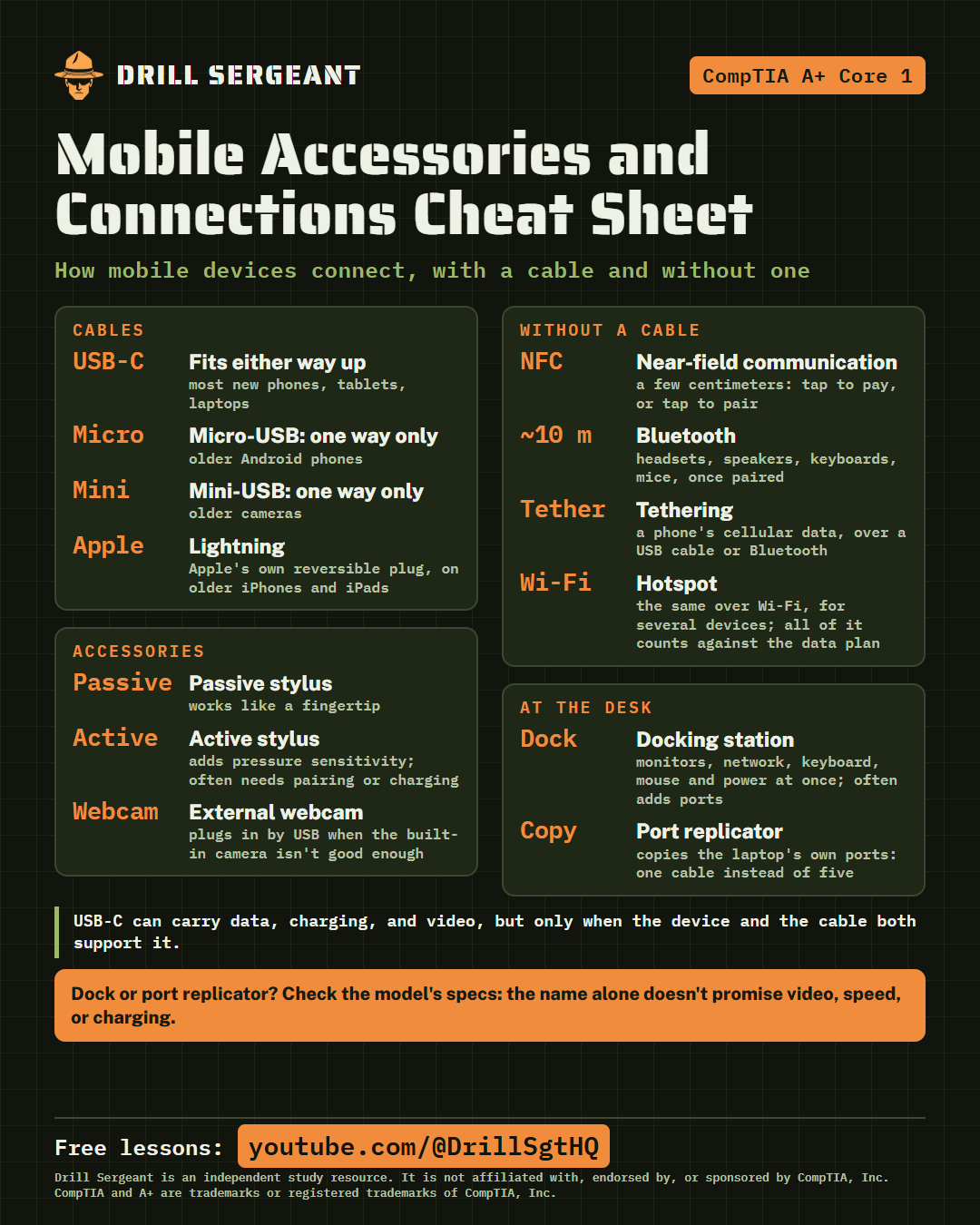
Mobile Accessories and Connections: USB-C, Micro-USB, Lightning, NFC, Bluetooth, Hotspot, Stylus, Docking Station vs Port Replicator cheat sheet
Cheat sheet as text

Mobile Accessories and Connections Cheat Sheet
How mobile devices connect, with a cable and without one

Cables

  • USB-C — Fits either way up: most new phones, tablets, laptops
  • Micro — Micro-USB: one way only: older Android phones
  • Mini — Mini-USB: one way only: older cameras
  • Apple — Lightning: Apple's own reversible plug, on older iPhones and iPads

Accessories

  • Passive — Passive stylus: works like a fingertip
  • Active — Active stylus: adds pressure sensitivity; often needs pairing or charging
  • Webcam — External webcam: plugs in by USB when the built-in camera isn't good enough

Without a cable

  • NFC — Near-field communication: a few centimeters: tap to pay, or tap to pair
  • ~10 m — Bluetooth: headsets, speakers, keyboards, mice, once paired
  • Tether — Tethering: a phone's cellular data, over a USB cable or Bluetooth
  • Wi-Fi — Hotspot: the same over Wi-Fi, for several devices; all of it counts against the data plan

At the desk

  • Dock — Docking station: monitors, network, keyboard, mouse and power at once; often adds ports
  • Copy — Port replicator: copies the laptop's own ports: one cable instead of five

USB-C can carry data, charging, and video, but only when the device and the cable both support it.

Dock or port replicator? Check the model's specs: the name alone doesn't promise video, speed, or charging.

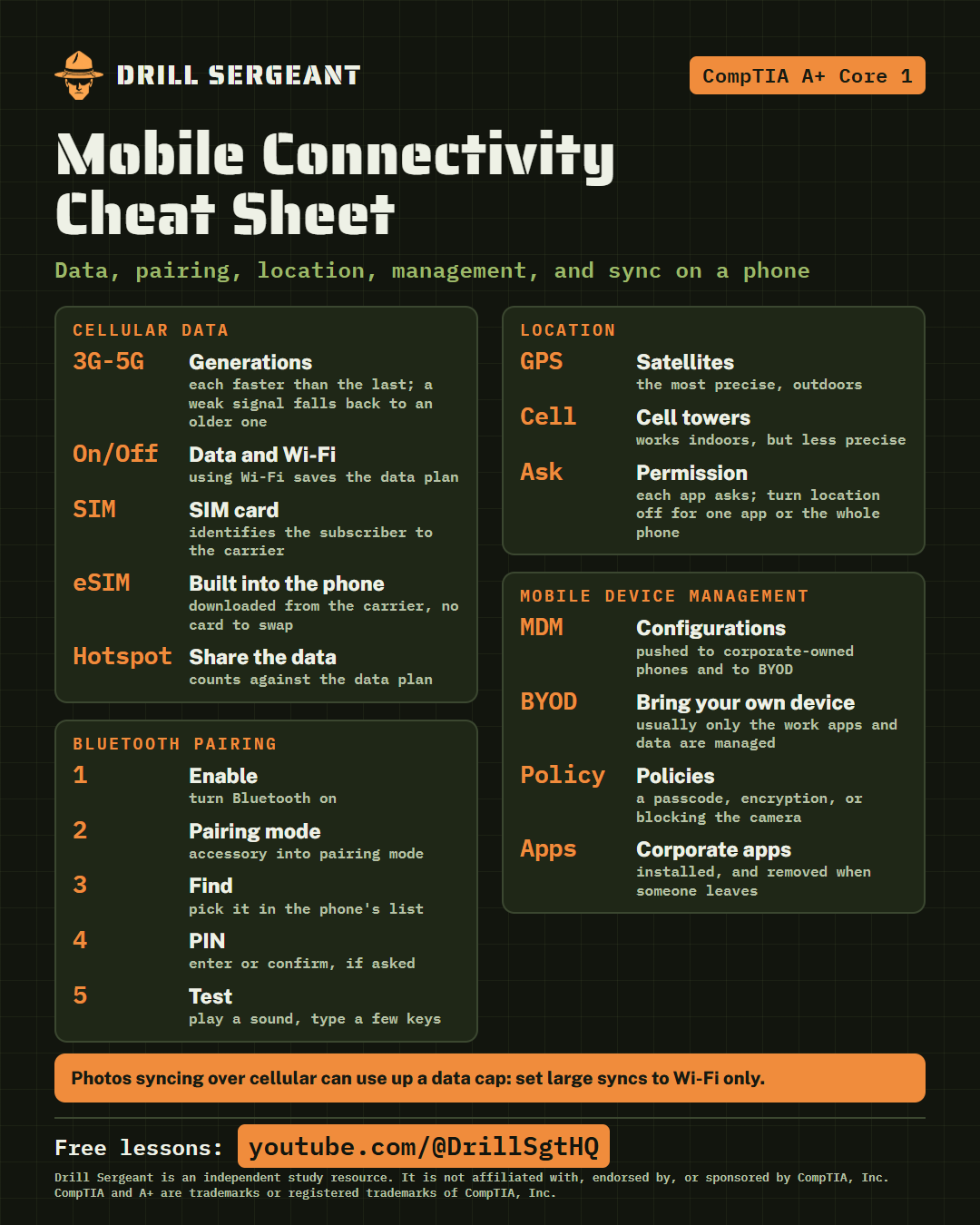
Mobile Connectivity and App Support: 4G/5G, SIM vs eSIM, Bluetooth Pairing, GPS, MDM, BYOD, Sync and Data Caps cheat sheet
Cheat sheet as text

Mobile Connectivity Cheat Sheet
Data, pairing, location, management, and sync on a phone

Cellular data

  • 3G-5G — Generations: each faster than the last; a weak signal falls back to an older one
  • On/Off — Data and Wi-Fi: using Wi-Fi saves the data plan
  • SIM — SIM card: identifies the subscriber to the carrier
  • eSIM — Built into the phone: downloaded from the carrier, no card to swap
  • Hotspot — Share the data: counts against the data plan

Bluetooth pairing

KeyMeaningNote
1Enableturn Bluetooth on
2Pairing modeaccessory into pairing mode
3Findpick it in the phone's list
4PINenter or confirm, if asked
5Testplay a sound, type a few keys

Location

  • GPS — Satellites: the most precise, outdoors
  • Cell — Cell towers: works indoors, but less precise
  • Ask — Permission: each app asks; turn location off for one app or the whole phone

Mobile device management

  • MDM — Configurations: pushed to corporate-owned phones and to BYOD
  • BYOD — Bring your own device: usually only the work apps and data are managed
  • Policy — Policies: a passcode, encryption, or blocking the camera
  • Apps — Corporate apps: installed, and removed when someone leaves

Photos syncing over cellular can use up a data cap: set large syncs to Wi-Fi only.

Core 1: Networking

CompTIA A+ 220-1201, domain 2.0 · 8 sheets

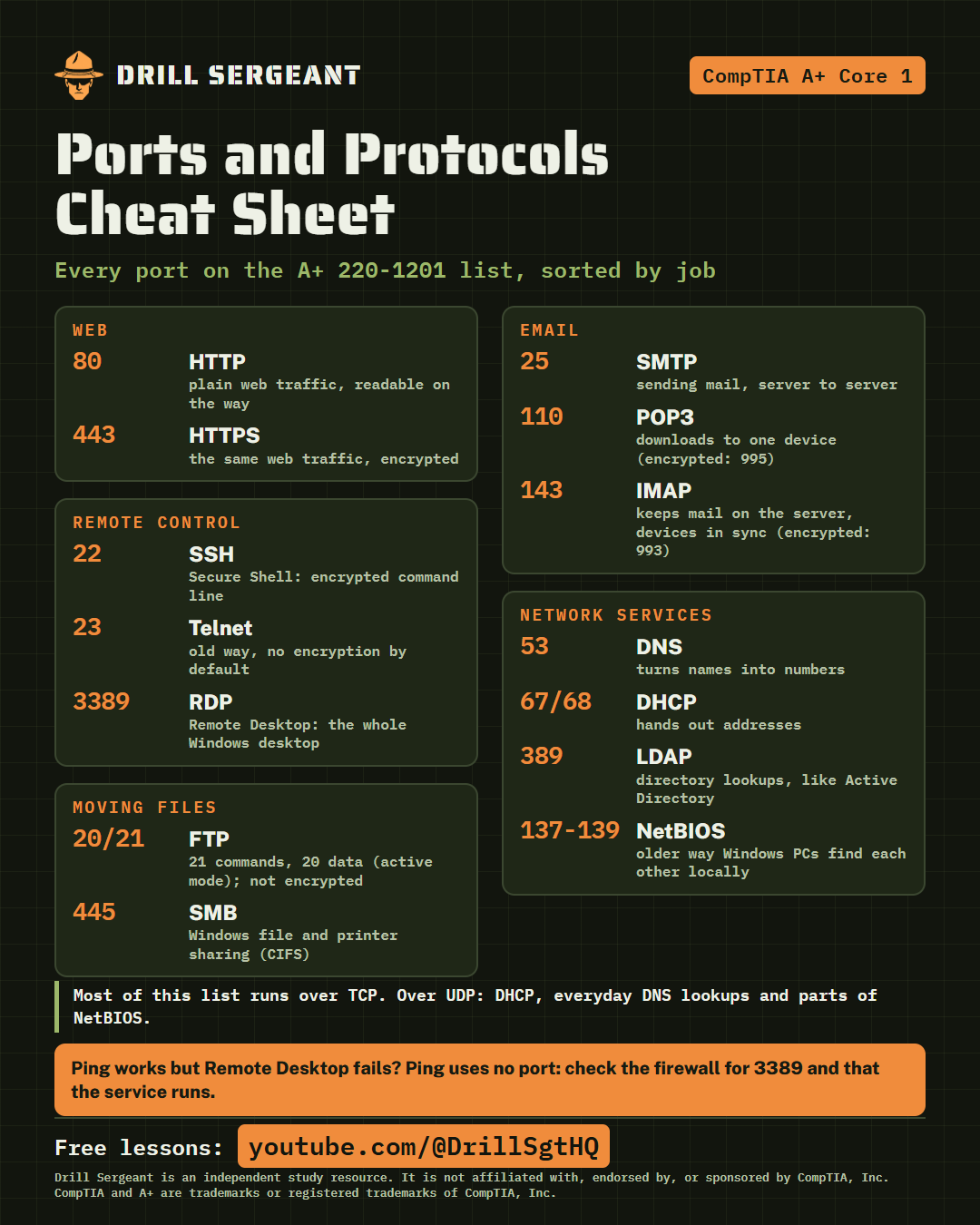
Ports and Protocols cheat sheet
Cheat sheet as text

Ports and Protocols Cheat Sheet
Every port on the A+ 220-1201 list, sorted by job

Web

KeyMeaningNote
80HTTPplain web traffic, readable on the way
443HTTPSthe same web traffic, encrypted

Remote control

KeyMeaningNote
22SSHSecure Shell: encrypted command line
23Telnetold way, no encryption by default
3389RDPRemote Desktop: the whole Windows desktop

Moving files

KeyMeaningNote
20/21FTP21 commands, 20 data (active mode); not encrypted
445SMBWindows file and printer sharing (CIFS)

Email

KeyMeaningNote
25SMTPsending mail, server to server
110POP3downloads to one device (encrypted: 995)
143IMAPkeeps mail on the server, devices in sync (encrypted: 993)

Network services

KeyMeaningNote
53DNSturns names into numbers
67/68DHCPhands out addresses
389LDAPdirectory lookups, like Active Directory
137-139NetBIOSolder way Windows PCs find each other locally

Most of this list runs over TCP. Over UDP: DHCP, everyday DNS lookups and parts of NetBIOS.

Ping works but Remote Desktop fails? Ping uses no port: check the firewall for 3389 and that the service runs.

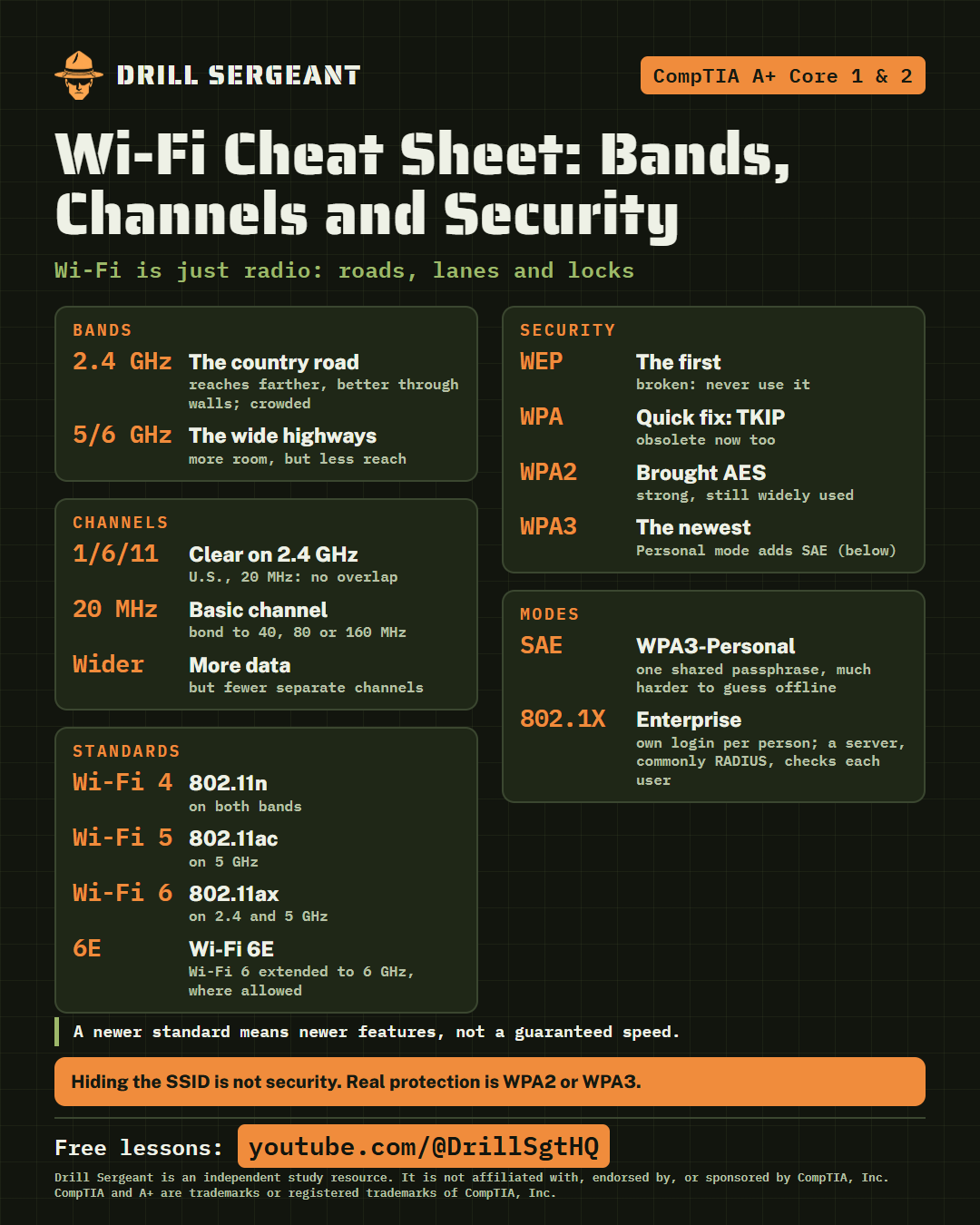
Wi-Fi: Bands, Channels, Standards and Security cheat sheet

Wi-Fi: Bands, Channels, Standards and Security

Core 1 objective 2.2, Core 2 objectives 2.3 and 2.10

Cheat sheet as text

Wi-Fi Cheat Sheet: Bands, Channels and Security
Wi-Fi is just radio: roads, lanes and locks

Bands

KeyMeaningNote
2.4 GHzThe country roadreaches farther, better through walls; crowded
5/6 GHzThe wide highwaysmore room, but less reach

Channels

  • 1/6/11 — Clear on 2.4 GHz: U.S., 20 MHz: no overlap
  • 20 MHz — Basic channel: bond to 40, 80 or 160 MHz
  • Wider — More data: but fewer separate channels

Standards

KeyMeaningNote
Wi-Fi 4802.11non both bands
Wi-Fi 5802.11acon 5 GHz
Wi-Fi 6802.11axon 2.4 and 5 GHz
6EWi-Fi 6EWi-Fi 6 extended to 6 GHz, where allowed

Security

KeyMeaningNote
WEPThe firstbroken: never use it
WPAQuick fix: TKIPobsolete now too
WPA2Brought AESstrong, still widely used
WPA3The newestPersonal mode adds SAE (below)

Modes

KeyMeaningNote
SAEWPA3-Personalone shared passphrase, much harder to guess offline
802.1XEnterpriseown login per person; a server, commonly RADIUS, checks each user

A newer standard means newer features, not a guaranteed speed.

Hiding the SSID is not security. Real protection is WPA2 or WPA3.

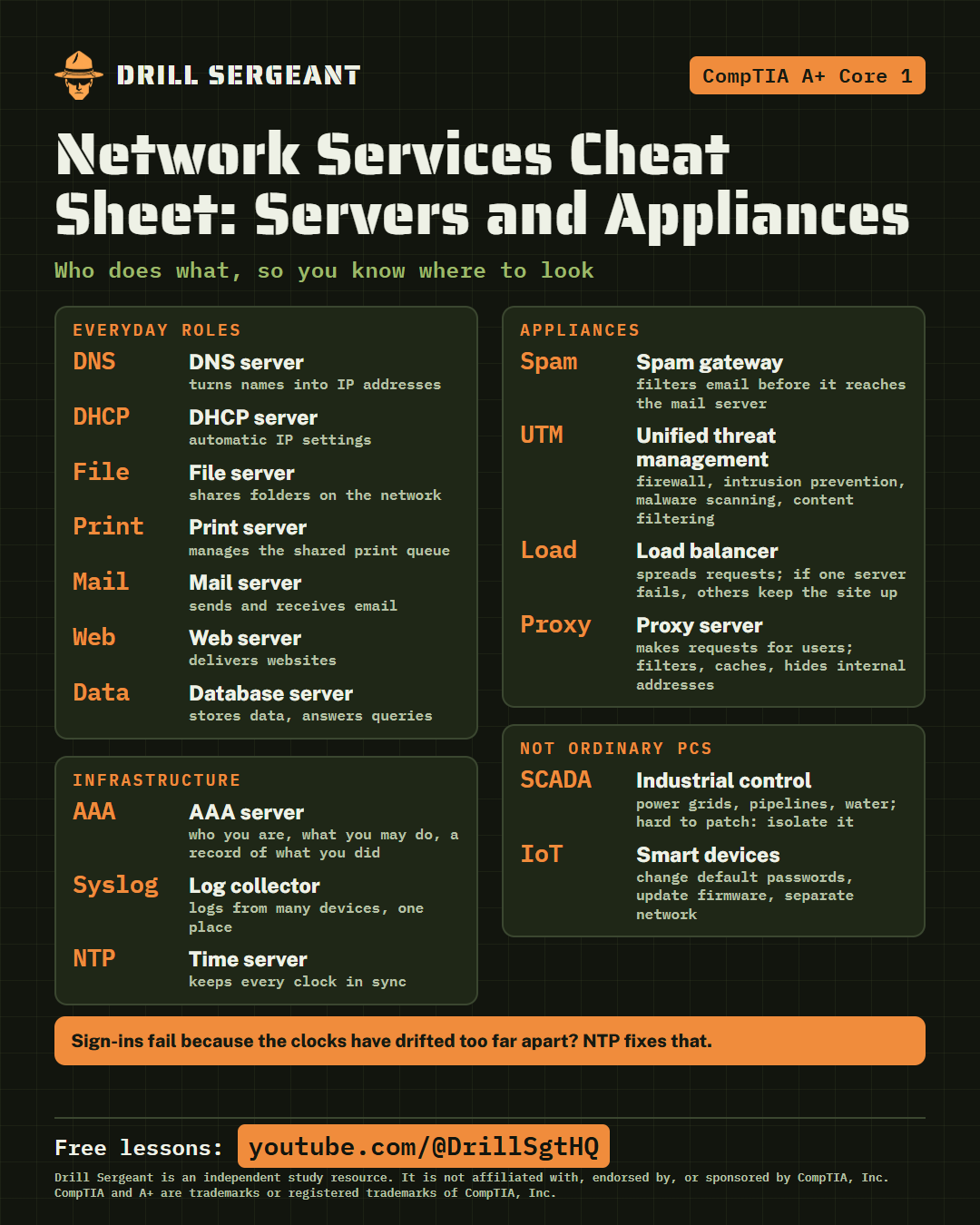
Network Services: DNS, DHCP, File, Print, Mail, AAA, Syslog, NTP, UTM, Proxies, SCADA and IoT cheat sheet
Cheat sheet as text

Network Services Cheat Sheet: Servers and Appliances
Who does what, so you know where to look

Everyday roles

  • DNS — DNS server: turns names into IP addresses
  • DHCP — DHCP server: automatic IP settings
  • File — File server: shares folders on the network
  • Print — Print server: manages the shared print queue
  • Mail — Mail server: sends and receives email
  • Web — Web server: delivers websites
  • Data — Database server: stores data, answers queries

Infrastructure

  • AAA — AAA server: who you are, what you may do, a record of what you did
  • Syslog — Log collector: logs from many devices, one place
  • NTP — Time server: keeps every clock in sync

Appliances

  • Spam — Spam gateway: filters email before it reaches the mail server
  • UTM — Unified threat management: firewall, intrusion prevention, malware scanning, content filtering
  • Load — Load balancer: spreads requests; if one server fails, others keep the site up
  • Proxy — Proxy server: makes requests for users; filters, caches, hides internal addresses

Not ordinary PCs

KeyMeaningNote
SCADAIndustrial controlpower grids, pipelines, water; hard to patch: isolate it
IoTSmart deviceschange default passwords, update firmware, separate network

Sign-ins fail because the clocks have drifted too far apart? NTP fixes that.

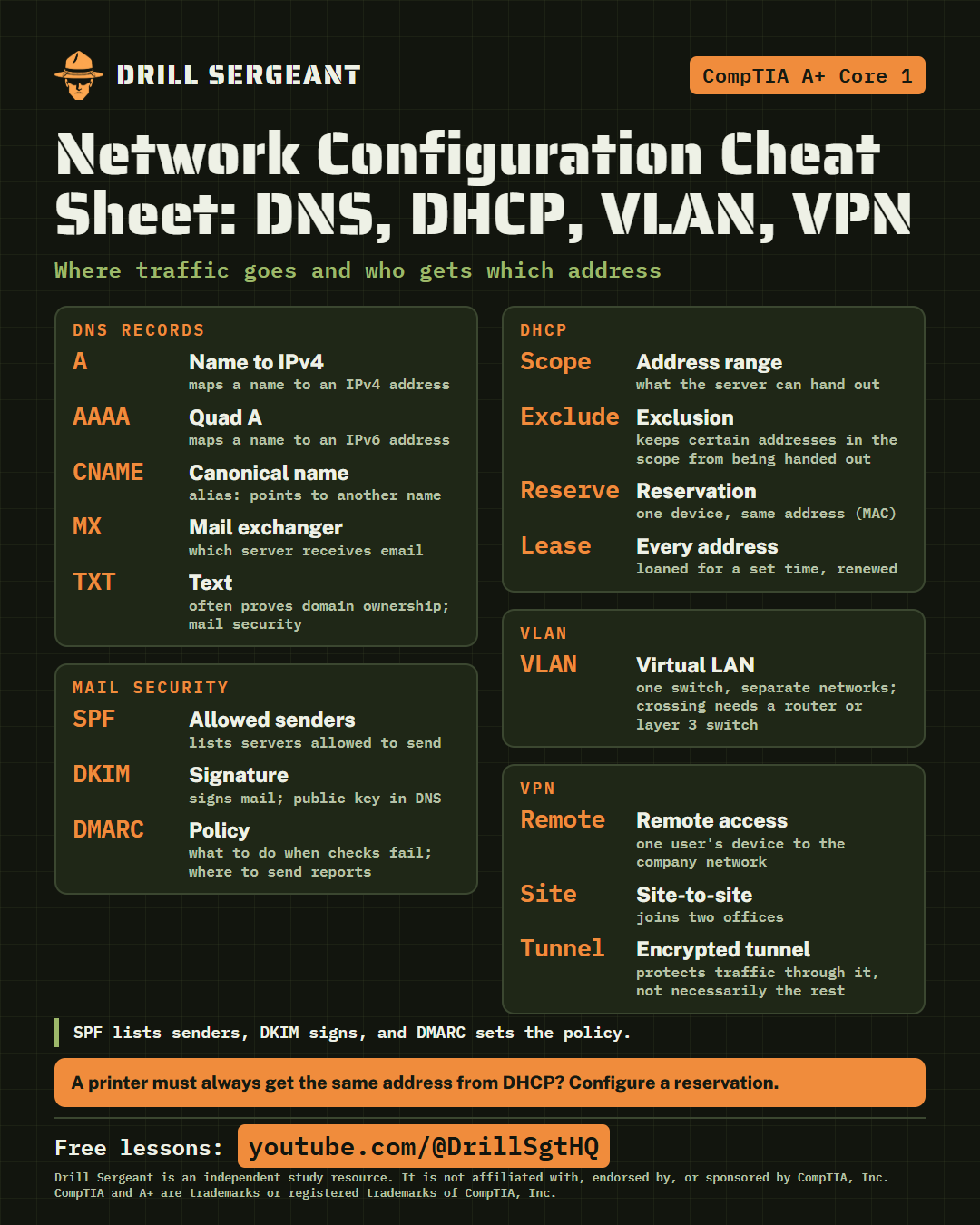
Network Configuration: DNS Records, SPF, DKIM, DMARC, DHCP Scopes and Reservations, VLANs and VPNs cheat sheet
Cheat sheet as text

Network Configuration Cheat Sheet: DNS, DHCP, VLAN, VPN
Where traffic goes and who gets which address

DNS records

KeyMeaningNote
AName to IPv4maps a name to an IPv4 address
AAAAQuad Amaps a name to an IPv6 address
CNAMECanonical namealias: points to another name
MXMail exchangerwhich server receives email
TXTTextoften proves domain ownership; mail security

Mail security

KeyMeaningNote
SPFAllowed senderslists servers allowed to send
DKIMSignaturesigns mail; public key in DNS
DMARCPolicywhat to do when checks fail; where to send reports

DHCP

  • Scope — Address range: what the server can hand out
  • Exclude — Exclusion: keeps certain addresses in the scope from being handed out
  • Reserve — Reservation: one device, same address (MAC)
  • Lease — Every address: loaned for a set time, renewed

VLAN

KeyMeaningNote
VLANVirtual LANone switch, separate networks; crossing needs a router or layer 3 switch

VPN

  • Remote — Remote access: one user's device to the company network
  • Site — Site-to-site: joins two offices
  • Tunnel — Encrypted tunnel: protects traffic through it, not necessarily the rest

SPF lists senders, DKIM signs, and DMARC sets the policy.

A printer must always get the same address from DHCP? Configure a reservation.

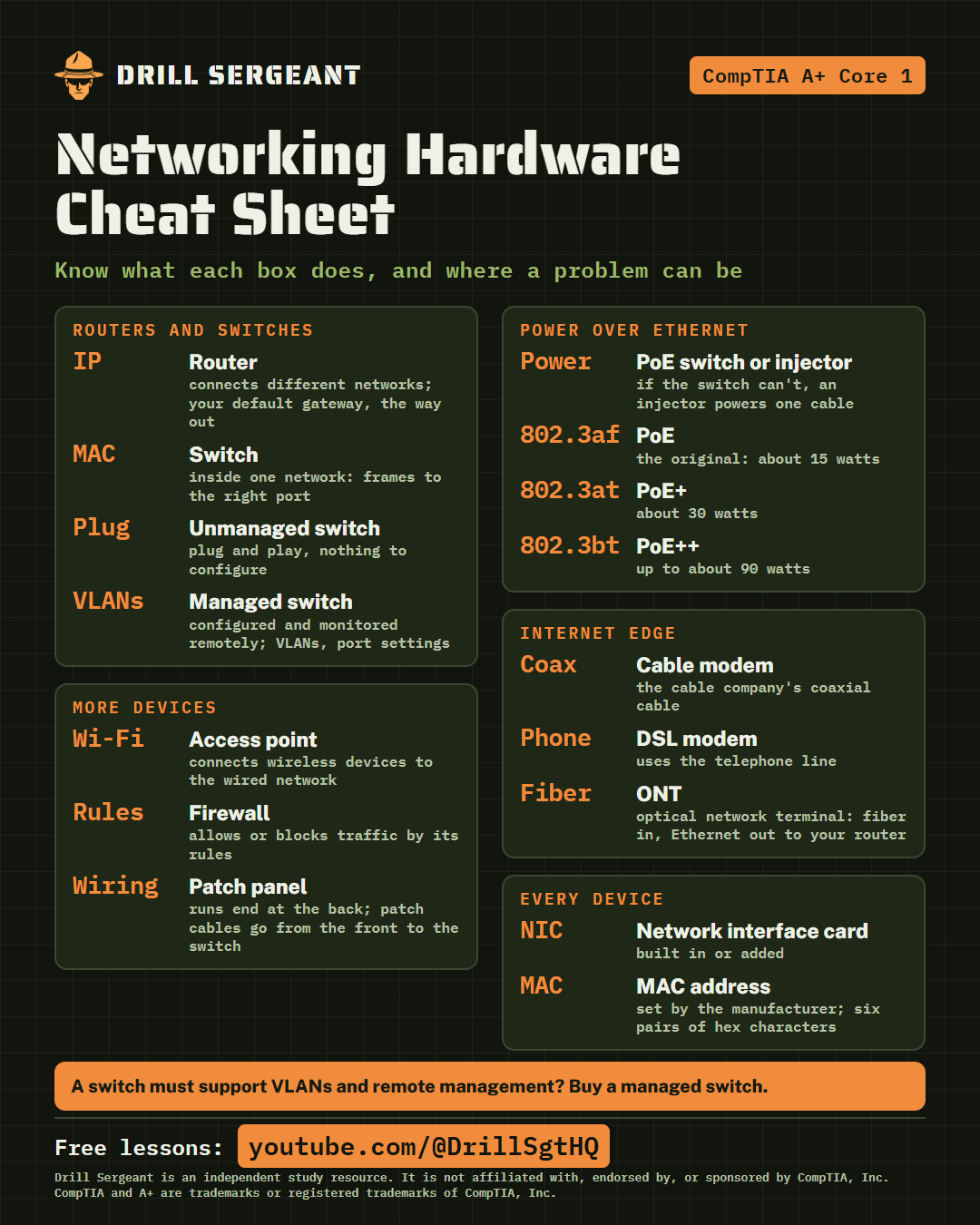
Networking Hardware: Routers, Switches, Access Points, Firewalls, PoE, Modems, ONTs and NICs cheat sheet
Cheat sheet as text

Networking Hardware Cheat Sheet
Know what each box does, and where a problem can be

Routers and switches

  • IP — Router: connects different networks; your default gateway, the way out
  • MAC — Switch: inside one network: frames to the right port
  • Plug — Unmanaged switch: plug and play, nothing to configure
  • VLANs — Managed switch: configured and monitored remotely; VLANs, port settings

More devices

  • Wi-Fi — Access point: connects wireless devices to the wired network
  • Rules — Firewall: allows or blocks traffic by its rules
  • Wiring — Patch panel: runs end at the back; patch cables go from the front to the switch

Power over Ethernet

  • Power — PoE switch or injector: if the switch can't, an injector powers one cable
  • 802.3af — PoE: the original: about 15 watts
  • 802.3at — PoE+: about 30 watts
  • 802.3bt — PoE++: up to about 90 watts

Internet edge

  • Coax — Cable modem: the cable company's coaxial cable
  • Phone — DSL modem: uses the telephone line
  • Fiber — ONT: optical network terminal: fiber in, Ethernet out to your router

Every device

KeyMeaningNote
NICNetwork interface cardbuilt in or added
MACMAC addressset by the manufacturer; six pairs of hex characters

A switch must support VLANs and remote management? Buy a managed switch.

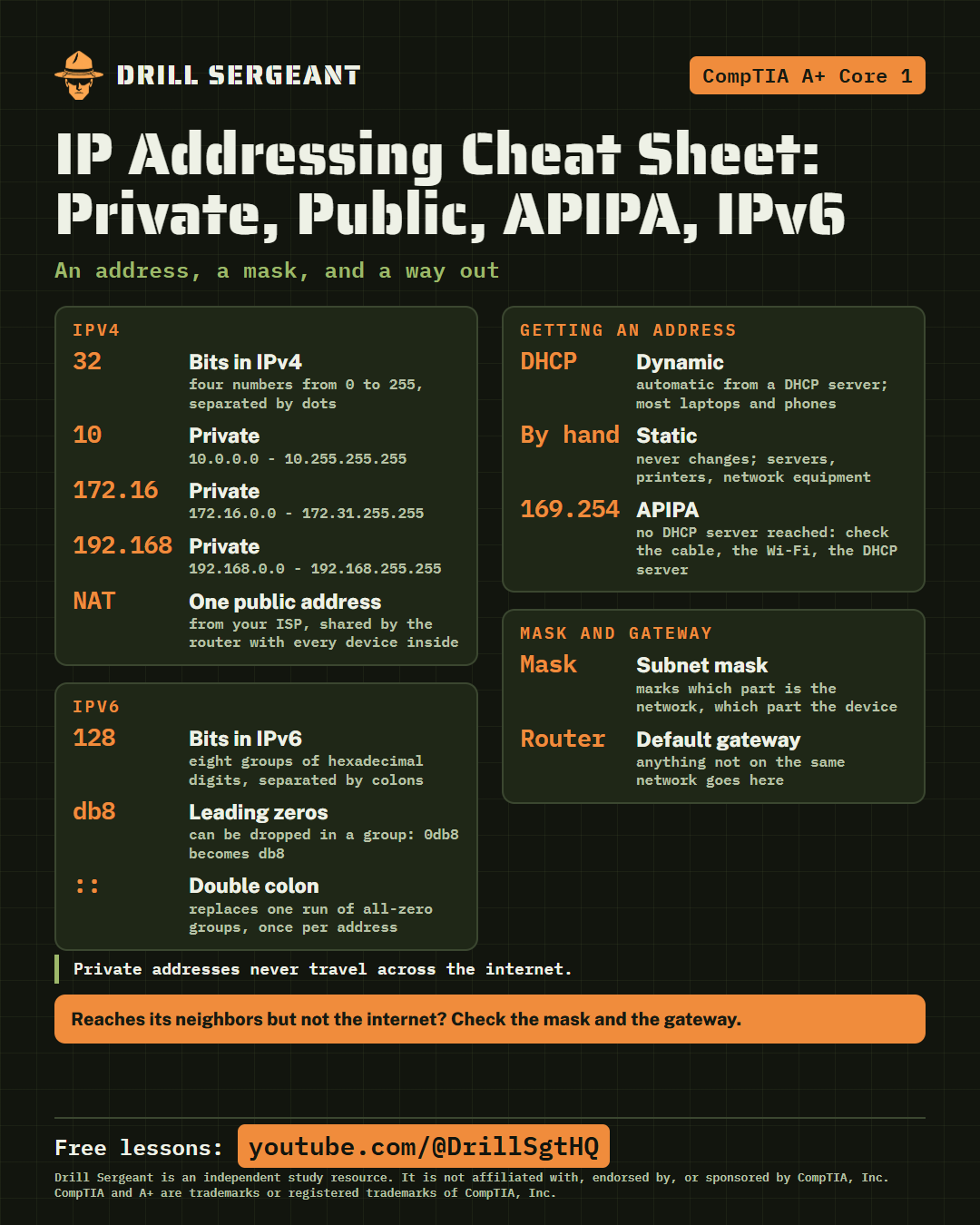
IP Addressing for SOHO Networks: Private vs Public, IPv6, APIPA, Static vs DHCP, Subnet Masks, Gateways cheat sheet
Cheat sheet as text

IP Addressing Cheat Sheet: Private, Public, APIPA, IPv6
An address, a mask, and a way out

IPv4

KeyMeaningNote
32Bits in IPv4four numbers from 0 to 255, separated by dots
10Private10.0.0.0 - 10.255.255.255
172.16Private172.16.0.0 - 172.31.255.255
192.168Private192.168.0.0 - 192.168.255.255
NATOne public addressfrom your ISP, shared by the router with every device inside

IPv6

  • 128 — Bits in IPv6: eight groups of hexadecimal digits, separated by colons
  • db8 — Leading zeros: can be dropped in a group: 0db8 becomes db8
  • :: — Double colon: replaces one run of all-zero groups, once per address

Getting an address

  • DHCP — Dynamic: automatic from a DHCP server; most laptops and phones
  • By hand — Static: never changes; servers, printers, network equipment
  • 169.254 — APIPA: no DHCP server reached: check the cable, the Wi-Fi, the DHCP server

Mask and gateway

  • Mask — Subnet mask: marks which part is the network, which part the device
  • Router — Default gateway: anything not on the same network goes here

Private addresses never travel across the internet.

Reaches its neighbors but not the internet? Check the mask and the gateway.

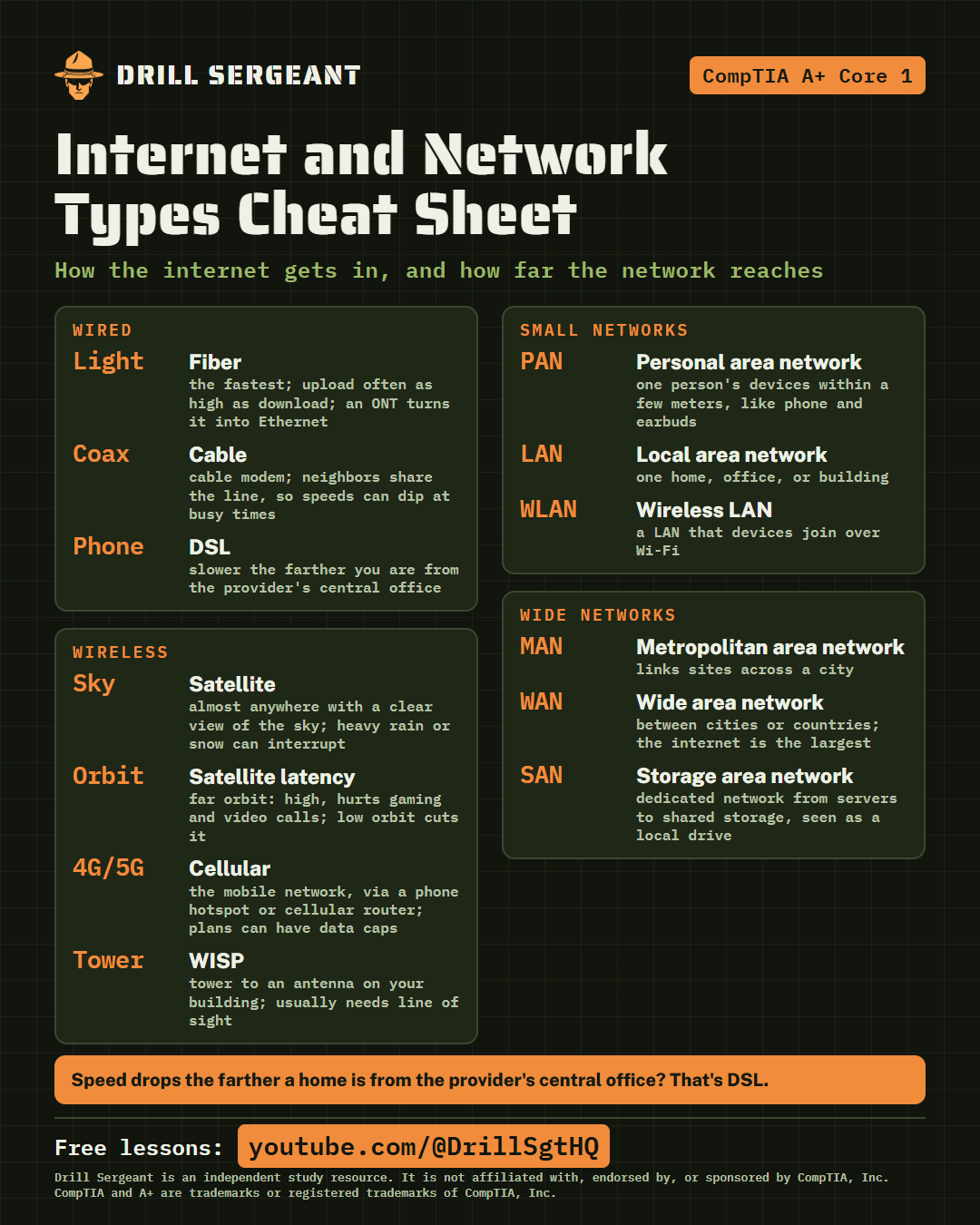
Internet Connection Types and Network Types: Fiber, Cable, DSL, Satellite, Cellular, WISP, LAN, WAN, PAN, MAN, SAN, WLAN cheat sheet
Cheat sheet as text

Internet and Network Types Cheat Sheet
How the internet gets in, and how far the network reaches

Wired

  • Light — Fiber: the fastest; upload often as high as download; an ONT turns it into Ethernet
  • Coax — Cable: cable modem; neighbors share the line, so speeds can dip at busy times
  • Phone — DSL: slower the farther you are from the provider's central office

Wireless

  • Sky — Satellite: almost anywhere with a clear view of the sky; heavy rain or snow can interrupt
  • Orbit — Satellite latency: far orbit: high, hurts gaming and video calls; low orbit cuts it
  • 4G/5G — Cellular: the mobile network, via a phone hotspot or cellular router; plans can have data caps
  • Tower — WISP: tower to an antenna on your building; usually needs line of sight

Small networks

KeyMeaningNote
PANPersonal area networkone person's devices within a few meters, like phone and earbuds
LANLocal area networkone home, office, or building
WLANWireless LANa LAN that devices join over Wi-Fi

Wide networks

KeyMeaningNote
MANMetropolitan area networklinks sites across a city
WANWide area networkbetween cities or countries; the internet is the largest
SANStorage area networkdedicated network from servers to shared storage, seen as a local drive

Speed drops the farther a home is from the provider's central office? That's DSL.

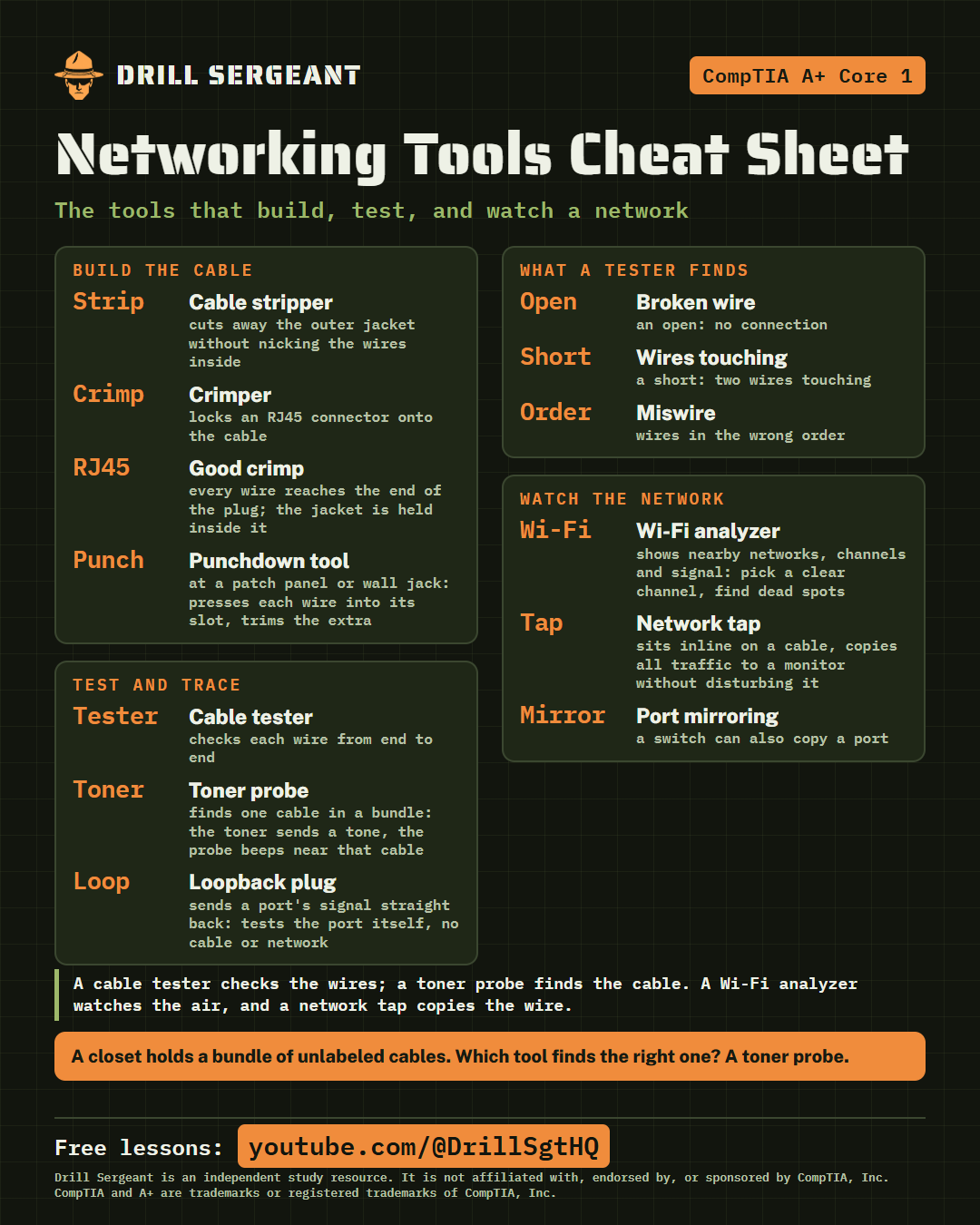
Networking Tools: Crimper, Cable Stripper, Punchdown Tool, Cable Tester, Toner Probe, Loopback Plug, Wi-Fi Analyzer, Network Tap cheat sheet
Cheat sheet as text

Networking Tools Cheat Sheet
The tools that build, test, and watch a network

Build the cable

  • Strip — Cable stripper: cuts away the outer jacket without nicking the wires inside
  • Crimp — Crimper: locks an RJ45 connector onto the cable
  • RJ45 — Good crimp: every wire reaches the end of the plug; the jacket is held inside it
  • Punch — Punchdown tool: at a patch panel or wall jack: presses each wire into its slot, trims the extra

Test and trace

  • Tester — Cable tester: checks each wire from end to end
  • Toner — Toner probe: finds one cable in a bundle: the toner sends a tone, the probe beeps near that cable
  • Loop — Loopback plug: sends a port's signal straight back: tests the port itself, no cable or network

What a tester finds

  • Open — Broken wire: an open: no connection
  • Short — Wires touching: a short: two wires touching
  • Order — Miswire: wires in the wrong order

Watch the network

  • Wi-Fi — Wi-Fi analyzer: shows nearby networks, channels and signal: pick a clear channel, find dead spots
  • Tap — Network tap: sits inline on a cable, copies all traffic to a monitor without disturbing it
  • Mirror — Port mirroring: a switch can also copy a port

A cable tester checks the wires; a toner probe finds the cable. A Wi-Fi analyzer watches the air, and a network tap copies the wire.

A closet holds a bundle of unlabeled cables. Which tool finds the right one? A toner probe.

Core 1: Hardware

CompTIA A+ 220-1201, domain 3.0 · 10 sheets

Display Types and Attributes: LCD (IPS, TN, VA), OLED, Mini-LED, Digitizer, Inverter, Resolution, Refresh Rate, Color Gamut cheat sheet
Cheat sheet as text

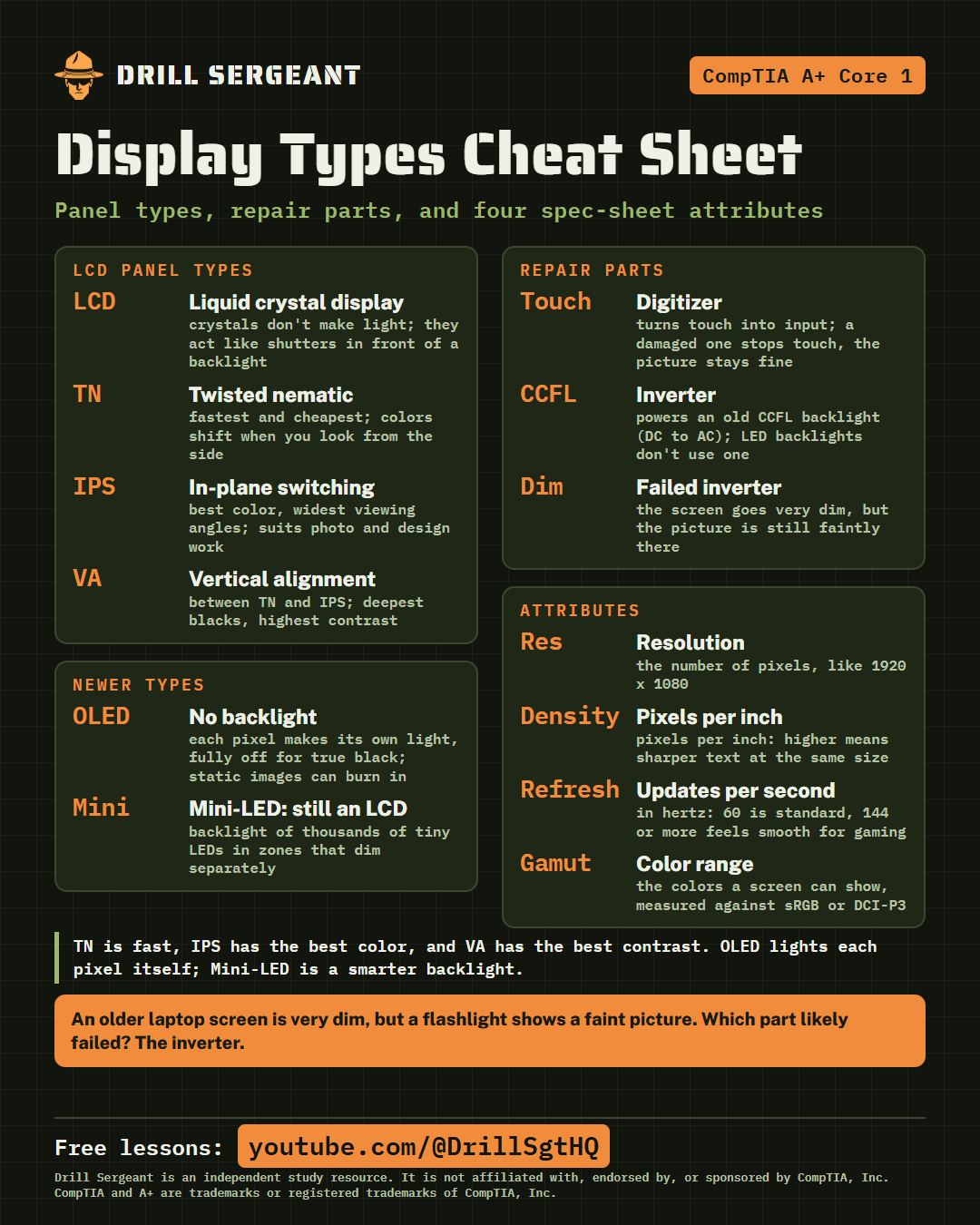
Display Types Cheat Sheet
Panel types, repair parts, and four spec-sheet attributes

LCD panel types

KeyMeaningNote
LCDLiquid crystal displaycrystals don't make light; they act like shutters in front of a backlight
TNTwisted nematicfastest and cheapest; colors shift when you look from the side
IPSIn-plane switchingbest color, widest viewing angles; suits photo and design work
VAVertical alignmentbetween TN and IPS; deepest blacks, highest contrast

Newer types

  • OLED — No backlight: each pixel makes its own light, fully off for true black; static images can burn in
  • Mini — Mini-LED: still an LCD: backlight of thousands of tiny LEDs in zones that dim separately

Repair parts

  • Touch — Digitizer: turns touch into input; a damaged one stops touch, the picture stays fine
  • CCFL — Inverter: powers an old CCFL backlight (DC to AC); LED backlights don't use one
  • Dim — Failed inverter: the screen goes very dim, but the picture is still faintly there

Attributes

  • Res — Resolution: the number of pixels, like 1920 x 1080
  • Density — Pixels per inch: pixels per inch: higher means sharper text at the same size
  • Refresh — Updates per second: in hertz: 60 is standard, 144 or more feels smooth for gaming
  • Gamut — Color range: the colors a screen can show, measured against sRGB or DCI-P3

TN is fast, IPS has the best color, and VA has the best contrast. OLED lights each pixel itself; Mini-LED is a smarter backlight.

An older laptop screen is very dim, but a flashlight shows a faint picture. Which part likely failed? The inverter.
Network Cables and Connectors: Cat 5e, 6, 6a, 8, T568A/B, Coax, STP, Plenum, Fiber, RJ45, RJ11, F-type, ST, SC, LC cheat sheet
Cheat sheet as text

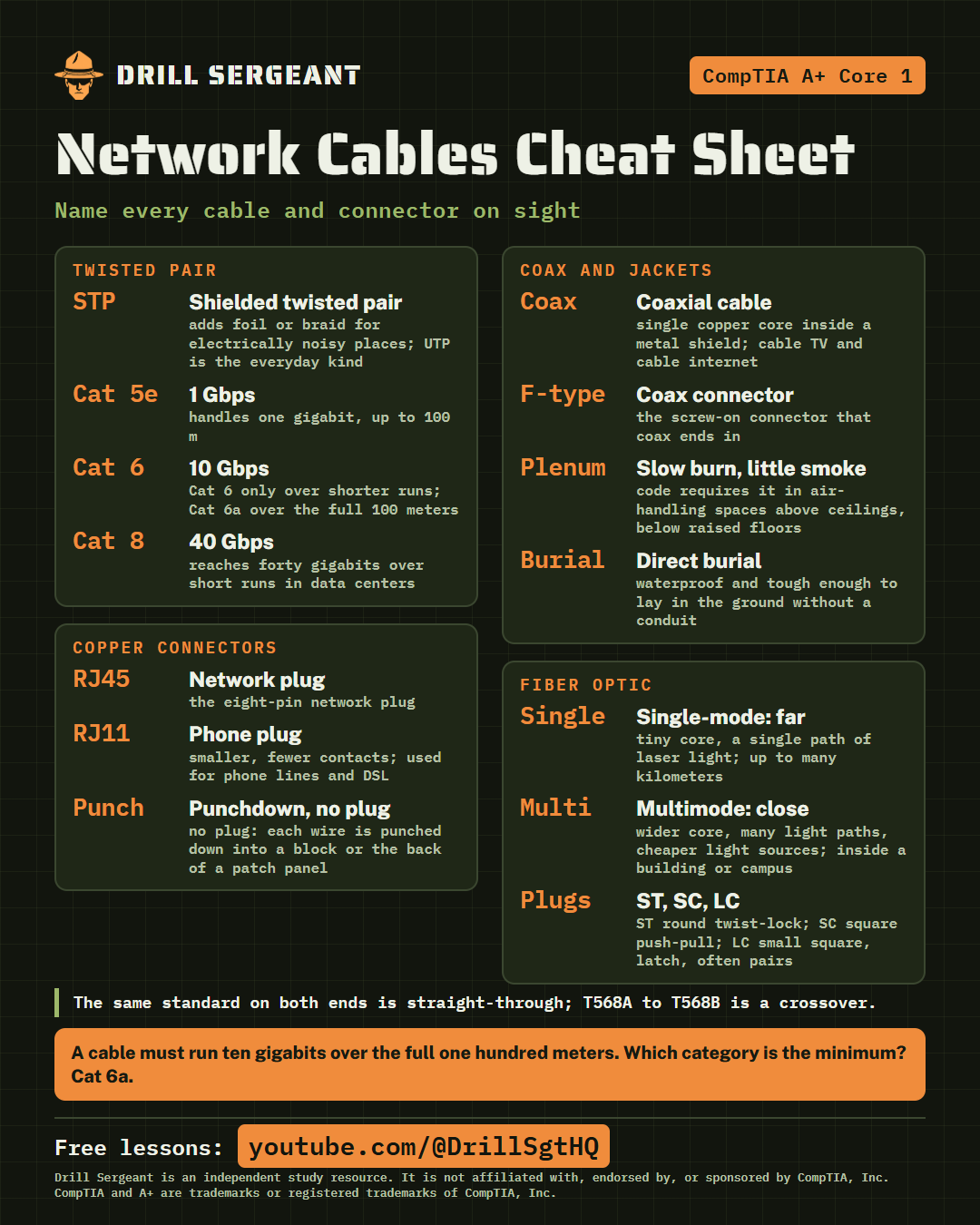
Network Cables Cheat Sheet
Name every cable and connector on sight

Twisted pair

KeyMeaningNote
STPShielded twisted pairadds foil or braid for electrically noisy places; UTP is the everyday kind
Cat 5e1 Gbpshandles one gigabit, up to 100 m
Cat 610 GbpsCat 6 only over shorter runs; Cat 6a over the full 100 meters
Cat 840 Gbpsreaches forty gigabits over short runs in data centers

Copper connectors

  • RJ45 — Network plug: the eight-pin network plug
  • RJ11 — Phone plug: smaller, fewer contacts; used for phone lines and DSL
  • Punch — Punchdown, no plug: no plug: each wire is punched down into a block or the back of a patch panel

Coax and jackets

  • Coax — Coaxial cable: single copper core inside a metal shield; cable TV and cable internet
  • F-type — Coax connector: the screw-on connector that coax ends in
  • Plenum — Slow burn, little smoke: code requires it in air-handling spaces above ceilings, below raised floors
  • Burial — Direct burial: waterproof and tough enough to lay in the ground without a conduit

Fiber optic

  • Single — Single-mode: far: tiny core, a single path of laser light; up to many kilometers
  • Multi — Multimode: close: wider core, many light paths, cheaper light sources; inside a building or campus
  • Plugs — ST, SC, LC: ST round twist-lock; SC square push-pull; LC small square, latch, often pairs

The same standard on both ends is straight-through; T568A to T568B is a crossover.

A cable must run ten gigabits over the full one hundred meters. Which category is the minimum? Cat 6a.
Peripheral, Video and Drive Cables: USB 2.0/3.0, USB-C, Thunderbolt, Lightning, DB9, HDMI, DisplayPort, DVI, VGA, SATA, eSATA, Molex, Adapters cheat sheet
Cheat sheet as text

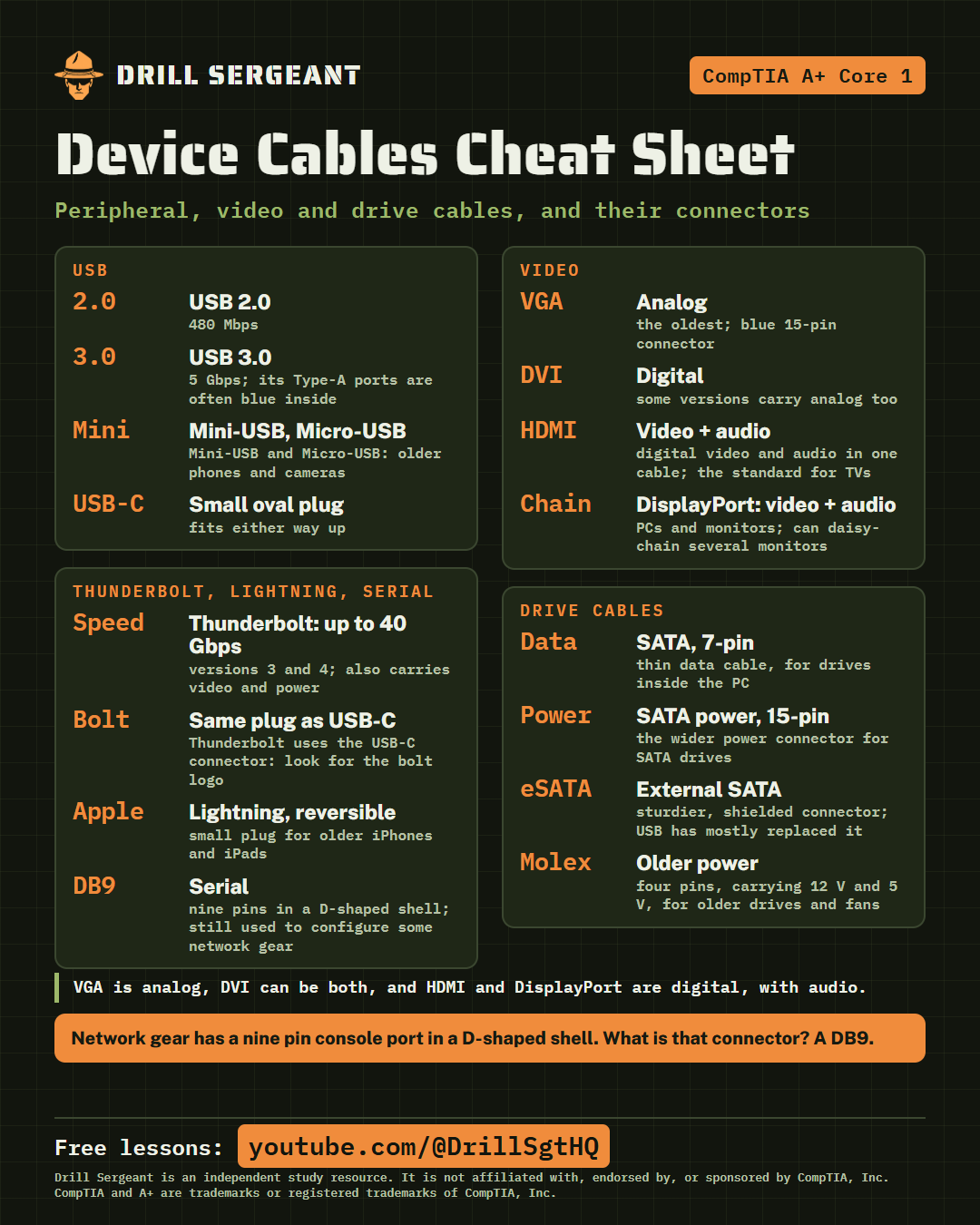
Device Cables Cheat Sheet
Peripheral, video and drive cables, and their connectors

USB

  • 2.0 — USB 2.0: 480 Mbps
  • 3.0 — USB 3.0: 5 Gbps; its Type-A ports are often blue inside
  • Mini — Mini-USB, Micro-USB: Mini-USB and Micro-USB: older phones and cameras
  • USB-C — Small oval plug: fits either way up

Thunderbolt, Lightning, serial

  • Speed — Thunderbolt: up to 40 Gbps: versions 3 and 4; also carries video and power
  • Bolt — Same plug as USB-C: Thunderbolt uses the USB-C connector: look for the bolt logo
  • Apple — Lightning, reversible: small plug for older iPhones and iPads
  • DB9 — Serial: nine pins in a D-shaped shell; still used to configure some network gear

Video

  • VGA — Analog: the oldest; blue 15-pin connector
  • DVI — Digital: some versions carry analog too
  • HDMI — Video + audio: digital video and audio in one cable; the standard for TVs
  • Chain — DisplayPort: video + audio: PCs and monitors; can daisy-chain several monitors

Drive cables

  • Data — SATA, 7-pin: thin data cable, for drives inside the PC
  • Power — SATA power, 15-pin: the wider power connector for SATA drives
  • eSATA — External SATA: sturdier, shielded connector; USB has mostly replaced it
  • Molex — Older power: four pins, carrying 12 V and 5 V, for older drives and fans

VGA is analog, DVI can be both, and HDMI and DisplayPort are digital, with audio.

Network gear has a nine pin console port in a D-shaped shell. What is that connector? A DB9.
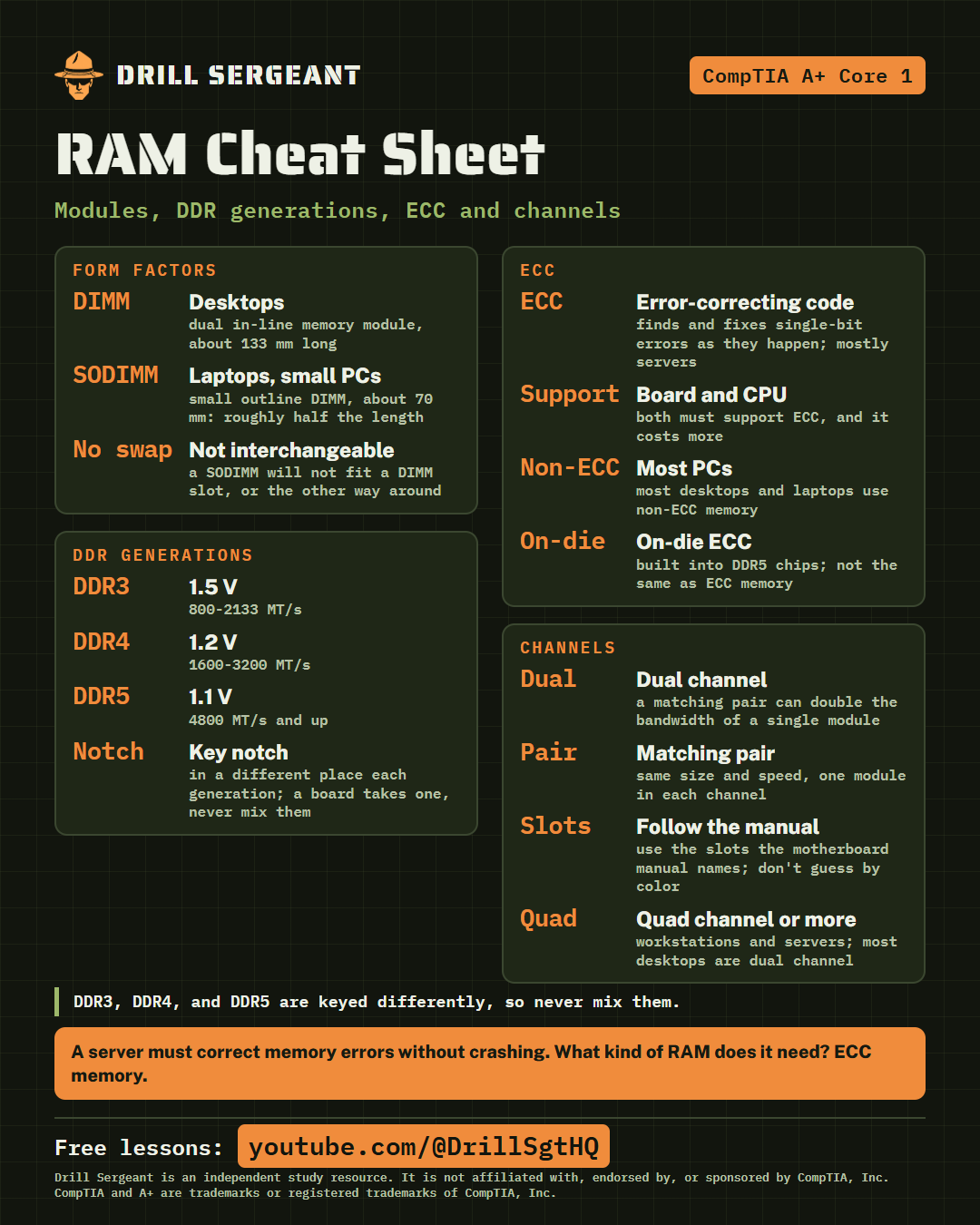
RAM: DIMM vs SODIMM, DDR3, DDR4, DDR5, ECC vs non-ECC, Dual and Quad Channel cheat sheet
Cheat sheet as text

RAM Cheat Sheet
Modules, DDR generations, ECC and channels

Form factors

  • DIMM — Desktops: dual in-line memory module, about 133 mm long
  • SODIMM — Laptops, small PCs: small outline DIMM, about 70 mm: roughly half the length
  • No swap — Not interchangeable: a SODIMM will not fit a DIMM slot, or the other way around

DDR generations

  • DDR3 — 1.5 V: 800-2133 MT/s
  • DDR4 — 1.2 V: 1600-3200 MT/s
  • DDR5 — 1.1 V: 4800 MT/s and up
  • Notch — Key notch: in a different place each generation; a board takes one, never mix them

ECC

  • ECC — Error-correcting code: finds and fixes single-bit errors as they happen; mostly servers
  • Support — Board and CPU: both must support ECC, and it costs more
  • Non-ECC — Most PCs: most desktops and laptops use non-ECC memory
  • On-die — On-die ECC: built into DDR5 chips; not the same as ECC memory

Channels

  • Dual — Dual channel: a matching pair can double the bandwidth of a single module
  • Pair — Matching pair: same size and speed, one module in each channel
  • Slots — Follow the manual: use the slots the motherboard manual names; don't guess by color
  • Quad — Quad channel or more: workstations and servers; most desktops are dual channel

DDR3, DDR4, and DDR5 are keyed differently, so never mix them.

A server must correct memory errors without crashing. What kind of RAM does it need? ECC memory.
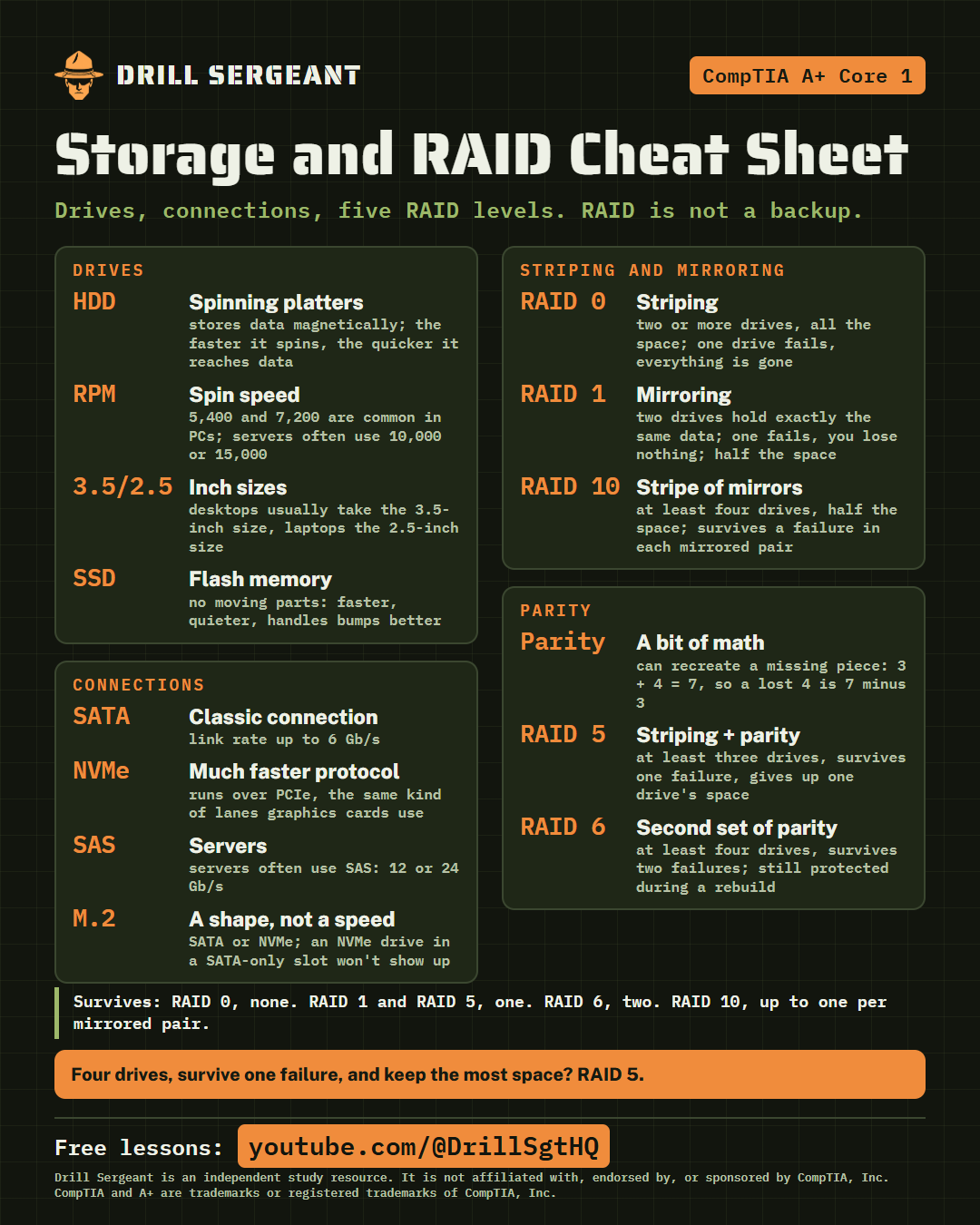
Storage Drives and RAID cheat sheet
Cheat sheet as text

Storage and RAID Cheat Sheet
Drives, connections, five RAID levels. RAID is not a backup.

Drives

KeyMeaningNote
HDDSpinning plattersstores data magnetically; the faster it spins, the quicker it reaches data
RPMSpin speed5,400 and 7,200 are common in PCs; servers often use 10,000 or 15,000
3.5/2.5Inch sizesdesktops usually take the 3.5-inch size, laptops the 2.5-inch size
SSDFlash memoryno moving parts: faster, quieter, handles bumps better

Connections

KeyMeaningNote
SATAClassic connectionlink rate up to 6 Gb/s
NVMeMuch faster protocolruns over PCIe, the same kind of lanes graphics cards use
SASServersservers often use SAS: 12 or 24 Gb/s
M.2A shape, not a speedSATA or NVMe; an NVMe drive in a SATA-only slot won't show up

Striping and mirroring

KeyMeaningNote
RAID 0Stripingtwo or more drives, all the space; one drive fails, everything is gone
RAID 1Mirroringtwo drives hold exactly the same data; one fails, you lose nothing; half the space
RAID 10Stripe of mirrorsat least four drives, half the space; survives a failure in each mirrored pair

Parity

  • Parity — A bit of math: can recreate a missing piece: 3 + 4 = 7, so a lost 4 is 7 minus 3
  • RAID 5 — Striping + parity: at least three drives, survives one failure, gives up one drive's space
  • RAID 6 — Second set of parity: at least four drives, survives two failures; still protected during a rebuild

Survives: RAID 0, none. RAID 1 and RAID 5, one. RAID 6, two. RAID 10, up to one per mirrored pair.

Four drives, survive one failure, and keep the most space? RAID 5.
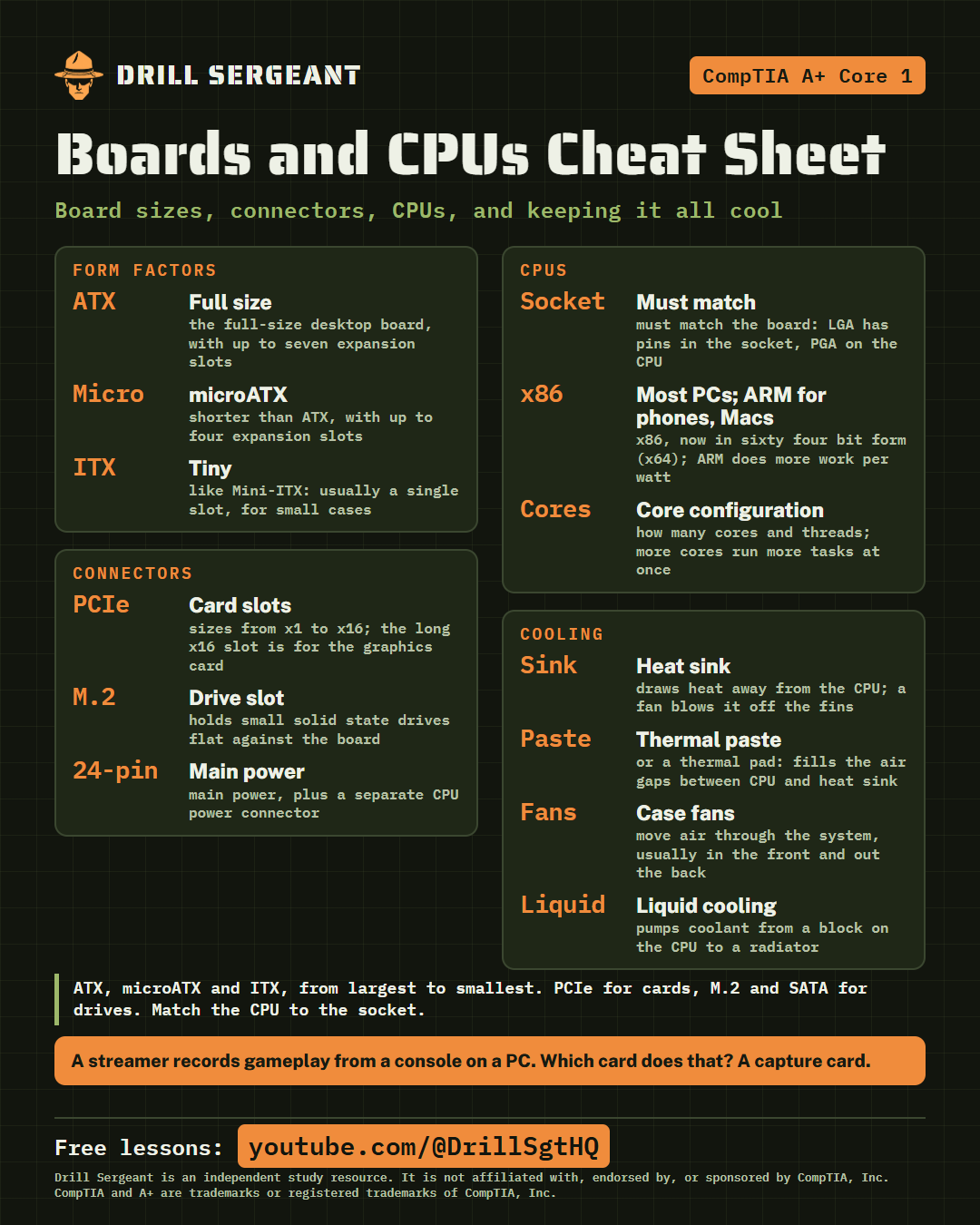
Motherboards, CPUs and Expansion Cards: ATX, microATX, ITX, PCIe, M.2, Headers, Sockets, x64 vs ARM, Cooling cheat sheet
Cheat sheet as text

Boards and CPUs Cheat Sheet
Board sizes, connectors, CPUs, and keeping it all cool

Form factors

  • ATX — Full size: the full-size desktop board, with up to seven expansion slots
  • Micro — microATX: shorter than ATX, with up to four expansion slots
  • ITX — Tiny: like Mini-ITX: usually a single slot, for small cases

Connectors

KeyMeaningNote
PCIeCard slotssizes from x1 to x16; the long x16 slot is for the graphics card
M.2Drive slotholds small solid state drives flat against the board
24-pinMain powermain power, plus a separate CPU power connector

CPUs

  • Socket — Must match: must match the board: LGA has pins in the socket, PGA on the CPU
  • x86 — Most PCs; ARM for phones, Macs: x86, now in sixty four bit form (x64); ARM does more work per watt
  • Cores — Core configuration: how many cores and threads; more cores run more tasks at once

Cooling

  • Sink — Heat sink: draws heat away from the CPU; a fan blows it off the fins
  • Paste — Thermal paste: or a thermal pad: fills the air gaps between CPU and heat sink
  • Fans — Case fans: move air through the system, usually in the front and out the back
  • Liquid — Liquid cooling: pumps coolant from a block on the CPU to a radiator

ATX, microATX and ITX, from largest to smallest. PCIe for cards, M.2 and SATA for drives. Match the CPU to the socket.

A streamer records gameplay from a console on a PC. Which card does that? A capture card.
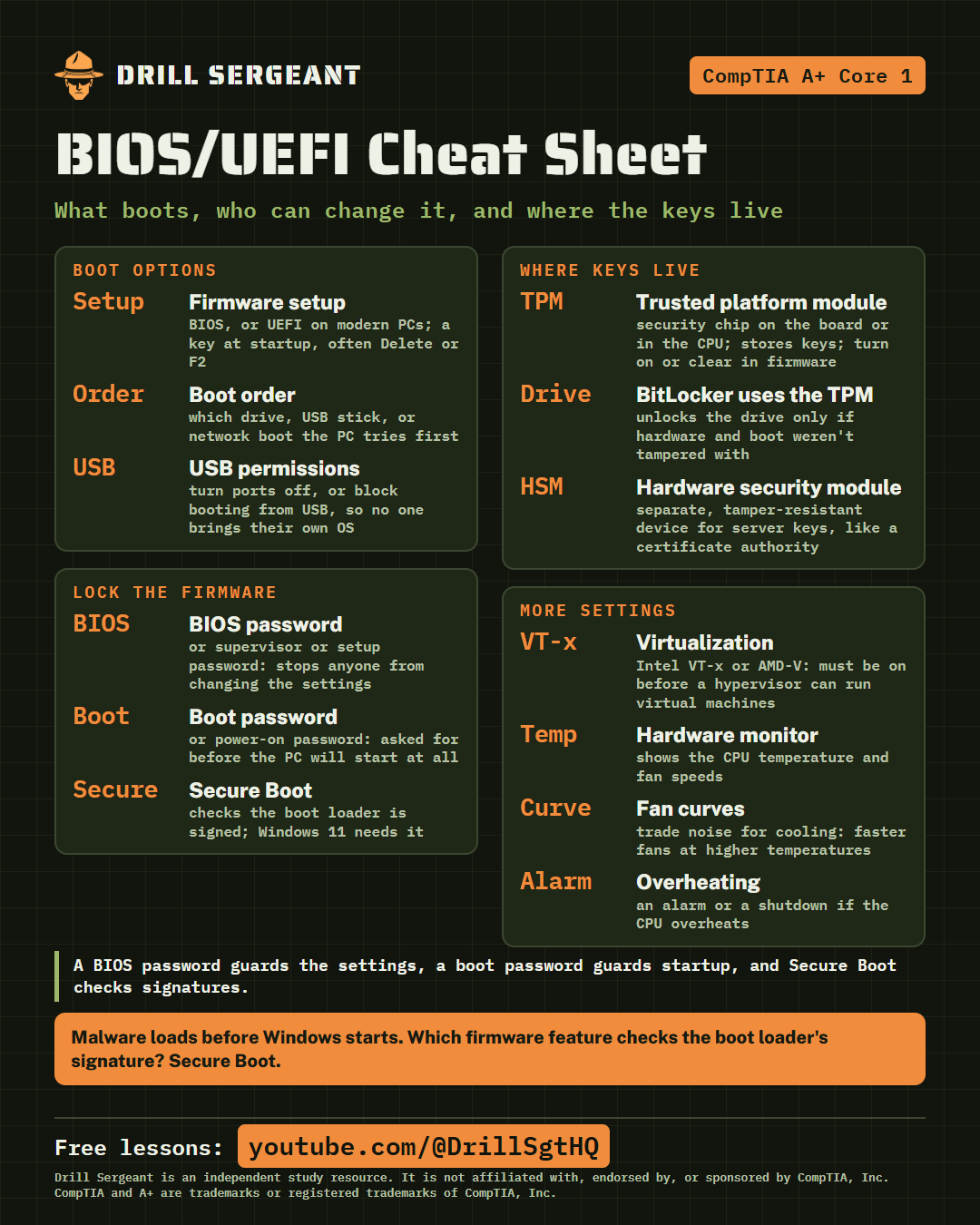
BIOS/UEFI Settings: Boot Options, USB Permissions, Passwords, Secure Boot, TPM, HSM, Virtualization, Fans and Temperatures cheat sheet
Cheat sheet as text

BIOS/UEFI Cheat Sheet
What boots, who can change it, and where the keys live

Boot options

  • Setup — Firmware setup: BIOS, or UEFI on modern PCs; a key at startup, often Delete or F2
  • Order — Boot order: which drive, USB stick, or network boot the PC tries first
  • USB — USB permissions: turn ports off, or block booting from USB, so no one brings their own OS

Lock the firmware

  • BIOS — BIOS password: or supervisor or setup password: stops anyone from changing the settings
  • Boot — Boot password: or power-on password: asked for before the PC will start at all
  • Secure — Secure Boot: checks the boot loader is signed; Windows 11 needs it

Where keys live

  • TPM — Trusted platform module: security chip on the board or in the CPU; stores keys; turn on or clear in firmware
  • Drive — BitLocker uses the TPM: unlocks the drive only if hardware and boot weren't tampered with
  • HSM — Hardware security module: separate, tamper-resistant device for server keys, like a certificate authority

More settings

  • VT-x — Virtualization: Intel VT-x or AMD-V: must be on before a hypervisor can run virtual machines
  • Temp — Hardware monitor: shows the CPU temperature and fan speeds
  • Curve — Fan curves: trade noise for cooling: faster fans at higher temperatures
  • Alarm — Overheating: an alarm or a shutdown if the CPU overheats

A BIOS password guards the settings, a boot password guards startup, and Secure Boot checks signatures.

Malware loads before Windows starts. Which firmware feature checks the boot loader's signature? Secure Boot.
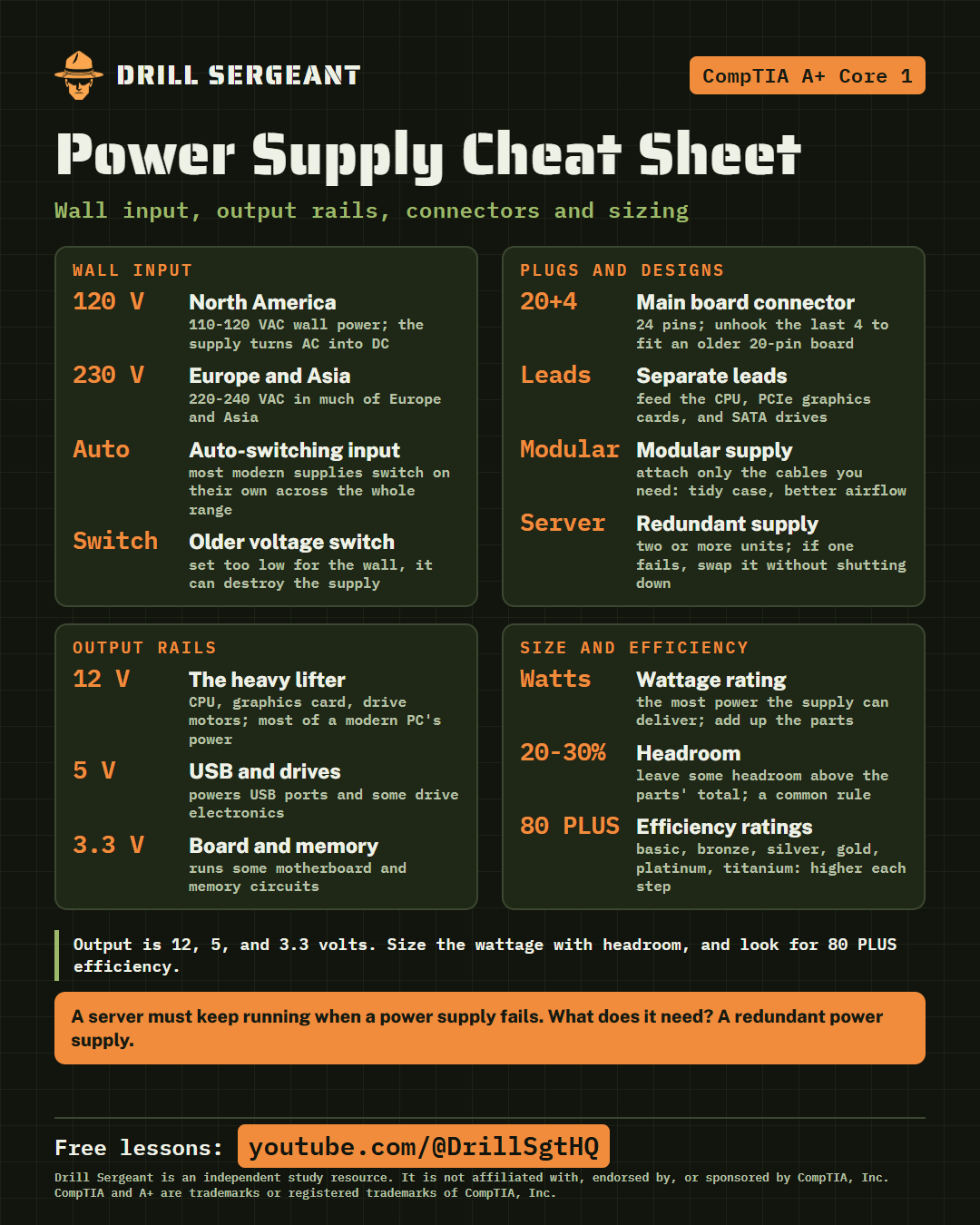
Power Supplies: 120 vs 230 VAC Input, 3.3/5/12 V Rails, 20+4 Pin, Modular, Redundant, Wattage, 80 PLUS cheat sheet
Cheat sheet as text

Power Supply Cheat Sheet
Wall input, output rails, connectors and sizing

Wall input

  • 120 V — North America: 110-120 VAC wall power; the supply turns AC into DC
  • 230 V — Europe and Asia: 220-240 VAC in much of Europe and Asia
  • Auto — Auto-switching input: most modern supplies switch on their own across the whole range
  • Switch — Older voltage switch: set too low for the wall, it can destroy the supply

Output rails

KeyMeaningNote
12 VThe heavy lifterCPU, graphics card, drive motors; most of a modern PC's power
5 VUSB and drivespowers USB ports and some drive electronics
3.3 VBoard and memoryruns some motherboard and memory circuits

Plugs and designs

  • 20+4 — Main board connector: 24 pins; unhook the last 4 to fit an older 20-pin board
  • Leads — Separate leads: feed the CPU, PCIe graphics cards, and SATA drives
  • Modular — Modular supply: attach only the cables you need: tidy case, better airflow
  • Server — Redundant supply: two or more units; if one fails, swap it without shutting down

Size and efficiency

  • Watts — Wattage rating: the most power the supply can deliver; add up the parts
  • 20-30% — Headroom: leave some headroom above the parts' total; a common rule
  • 80 PLUS — Efficiency ratings: basic, bronze, silver, gold, platinum, titanium: higher each step

Output is 12, 5, and 3.3 volts. Size the wattage with headroom, and look for 80 PLUS efficiency.

A server must keep running when a power supply fails. What does it need? A redundant power supply.
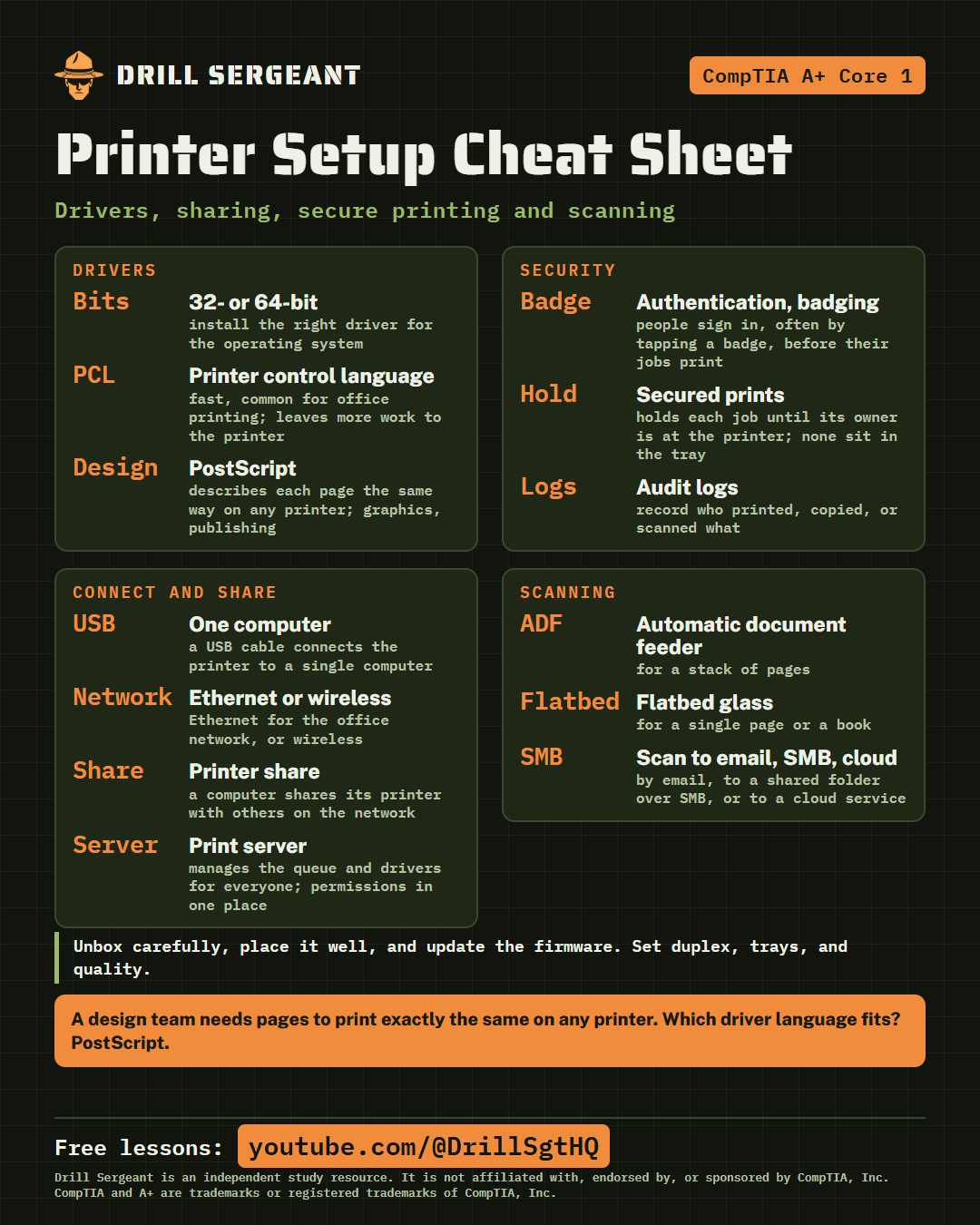
Deploying Printers and MFDs: Drivers (PCL vs PostScript), Connectivity, Print Servers, Settings, Secure Printing, Scanning cheat sheet
Cheat sheet as text

Printer Setup Cheat Sheet
Drivers, sharing, secure printing and scanning

Drivers

  • Bits — 32- or 64-bit: install the right driver for the operating system
  • PCL — Printer control language: fast, common for office printing; leaves more work to the printer
  • Design — PostScript: describes each page the same way on any printer; graphics, publishing

Connect and share

  • USB — One computer: a USB cable connects the printer to a single computer
  • Network — Ethernet or wireless: Ethernet for the office network, or wireless
  • Share — Printer share: a computer shares its printer with others on the network
  • Server — Print server: manages the queue and drivers for everyone; permissions in one place

Security

  • Badge — Authentication, badging: people sign in, often by tapping a badge, before their jobs print
  • Hold — Secured prints: holds each job until its owner is at the printer; none sit in the tray
  • Logs — Audit logs: record who printed, copied, or scanned what

Scanning

  • ADF — Automatic document feeder: for a stack of pages
  • Flatbed — Flatbed glass: for a single page or a book
  • SMB — Scan to email, SMB, cloud: by email, to a shared folder over SMB, or to a cloud service

Unbox carefully, place it well, and update the firmware. Set duplex, trays, and quality.

A design team needs pages to print exactly the same on any printer. Which driver language fits? PostScript.
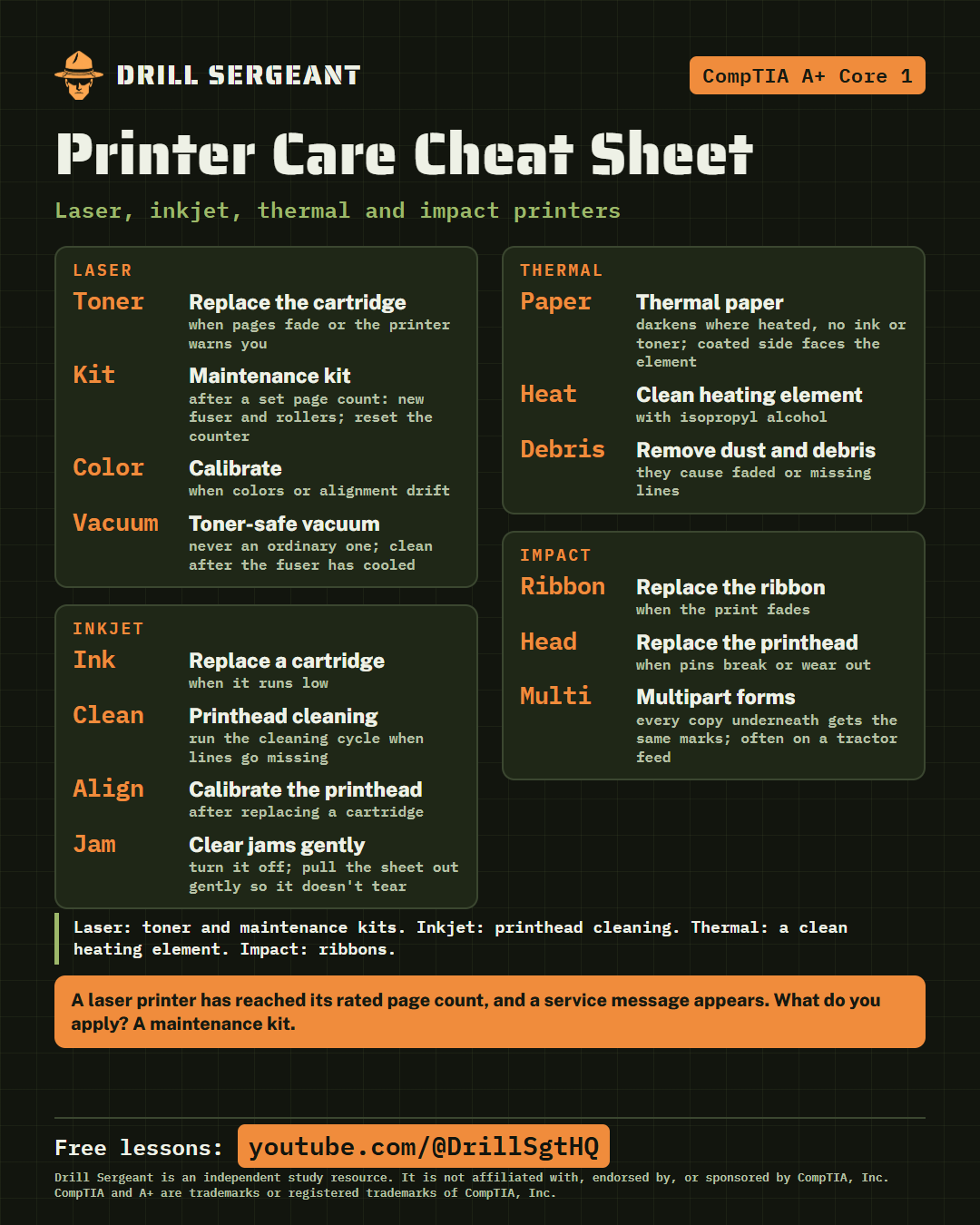
Printer Maintenance: Laser (Toner, Maintenance Kit), Inkjet (Printhead Cleaning), Thermal, Impact (Ribbon, Multipart Paper) cheat sheet
Cheat sheet as text

Printer Care Cheat Sheet
Laser, inkjet, thermal and impact printers

Laser

  • Toner — Replace the cartridge: when pages fade or the printer warns you
  • Kit — Maintenance kit: after a set page count: new fuser and rollers; reset the counter
  • Color — Calibrate: when colors or alignment drift
  • Vacuum — Toner-safe vacuum: never an ordinary one; clean after the fuser has cooled

Inkjet

  • Ink — Replace a cartridge: when it runs low
  • Clean — Printhead cleaning: run the cleaning cycle when lines go missing
  • Align — Calibrate the printhead: after replacing a cartridge
  • Jam — Clear jams gently: turn it off; pull the sheet out gently so it doesn't tear

Thermal

  • Paper — Thermal paper: darkens where heated, no ink or toner; coated side faces the element
  • Heat — Clean heating element: with isopropyl alcohol
  • Debris — Remove dust and debris: they cause faded or missing lines

Impact

  • Ribbon — Replace the ribbon: when the print fades
  • Head — Replace the printhead: when pins break or wear out
  • Multi — Multipart forms: every copy underneath gets the same marks; often on a tractor feed

Laser: toner and maintenance kits. Inkjet: printhead cleaning. Thermal: a clean heating element. Impact: ribbons.

A laser printer has reached its rated page count, and a service message appears. What do you apply? A maintenance kit.

Core 1: Virtualization and Cloud Computing

CompTIA A+ 220-1201, domain 4.0 · 1 sheet

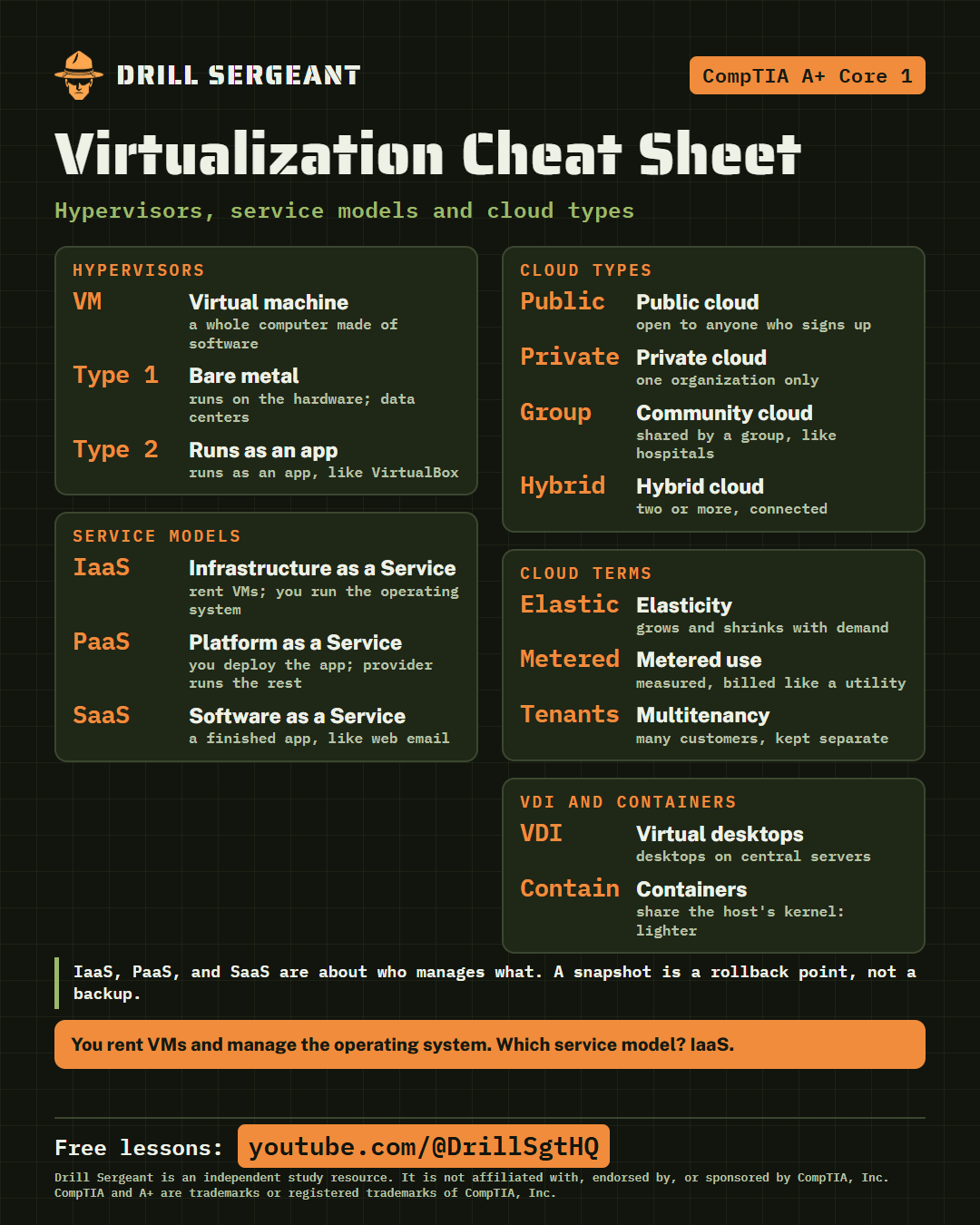
Virtualization and Cloud Computing cheat sheet
Cheat sheet as text

Virtualization Cheat Sheet
Hypervisors, service models and cloud types

Hypervisors

KeyMeaningNote
VMVirtual machinea whole computer made of software
Type 1Bare metalruns on the hardware; data centers
Type 2Runs as an appruns as an app, like VirtualBox

Service models

KeyMeaningNote
IaaSInfrastructure as a Servicerent VMs; you run the operating system
PaaSPlatform as a Serviceyou deploy the app; provider runs the rest
SaaSSoftware as a Servicea finished app, like web email

Cloud types

  • Public — Public cloud: open to anyone who signs up
  • Private — Private cloud: one organization only
  • Group — Community cloud: shared by a group, like hospitals
  • Hybrid — Hybrid cloud: two or more, connected

Cloud terms

  • Elastic — Elasticity: grows and shrinks with demand
  • Metered — Metered use: measured, billed like a utility
  • Tenants — Multitenancy: many customers, kept separate

VDI and containers

  • VDI — Virtual desktops: desktops on central servers
  • Contain — Containers: share the host's kernel: lighter

IaaS, PaaS, and SaaS are about who manages what. A snapshot is a rollback point, not a backup.

You rent VMs and manage the operating system. Which service model? IaaS.

Core 1: Hardware and Network Troubleshooting

CompTIA A+ 220-1201, domain 5.0 · 3 sheets

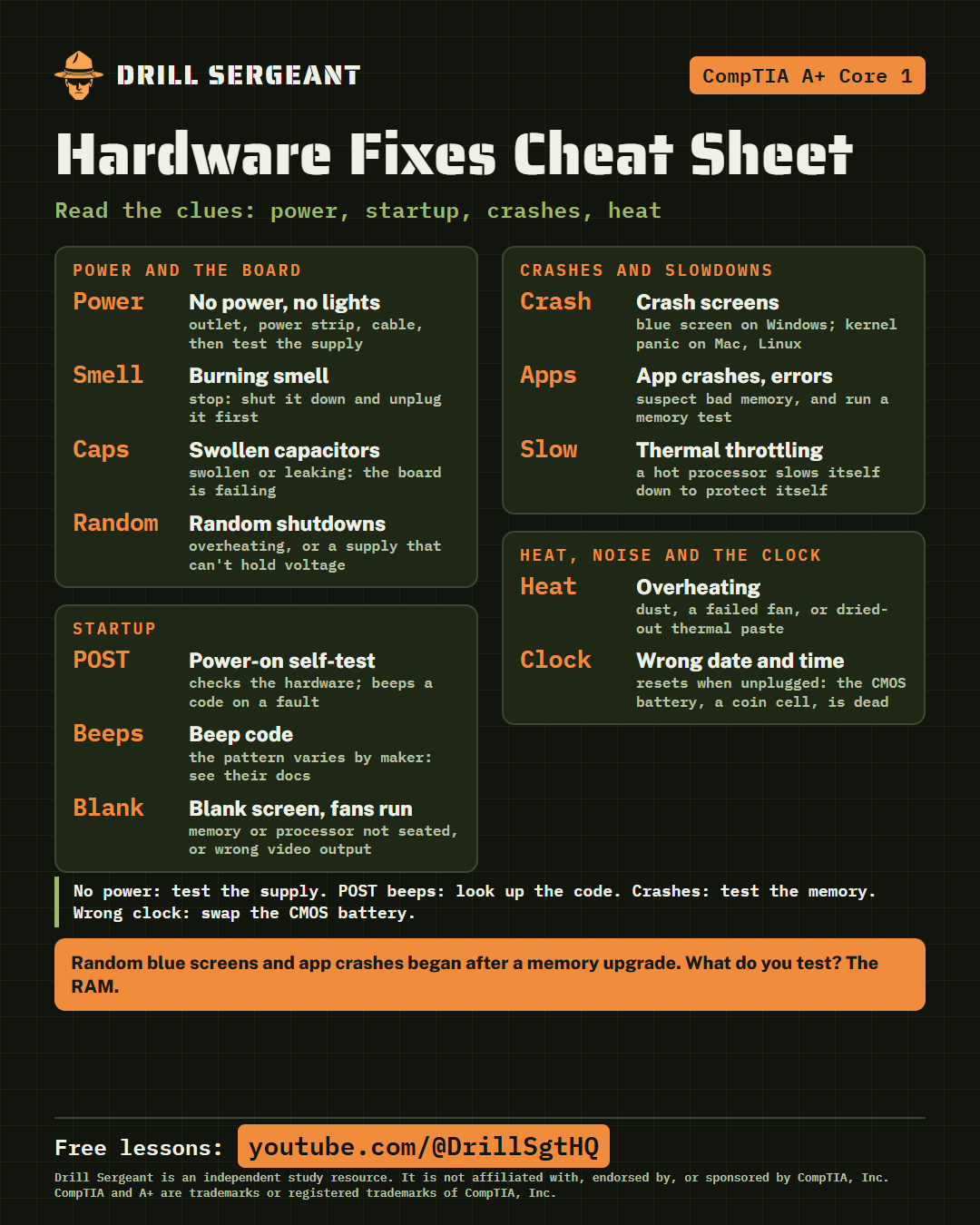
Troubleshooting Motherboards, RAM, CPUs and Power: POST Beeps, Blank Screen, Crash Screens, Overheating, Swollen Capacitors, CMOS Battery cheat sheet
Cheat sheet as text

Hardware Fixes Cheat Sheet
Read the clues: power, startup, crashes, heat

Power and the board

  • Power — No power, no lights: outlet, power strip, cable, then test the supply
  • Smell — Burning smell: stop: shut it down and unplug it first
  • Caps — Swollen capacitors: swollen or leaking: the board is failing
  • Random — Random shutdowns: overheating, or a supply that can't hold voltage

Startup

  • POST — Power-on self-test: checks the hardware; beeps a code on a fault
  • Beeps — Beep code: the pattern varies by maker: see their docs
  • Blank — Blank screen, fans run: memory or processor not seated, or wrong video output

Crashes and slowdowns

  • Crash — Crash screens: blue screen on Windows; kernel panic on Mac, Linux
  • Apps — App crashes, errors: suspect bad memory, and run a memory test
  • Slow — Thermal throttling: a hot processor slows itself down to protect itself

Heat, noise and the clock

  • Heat — Overheating: dust, a failed fan, or dried-out thermal paste
  • Clock — Wrong date and time: resets when unplugged: the CMOS battery, a coin cell, is dead

No power: test the supply. POST beeps: look up the code. Crashes: test the memory. Wrong clock: swap the CMOS battery.

Random blue screens and app crashes began after a memory upgrade. What do you test? The RAM.

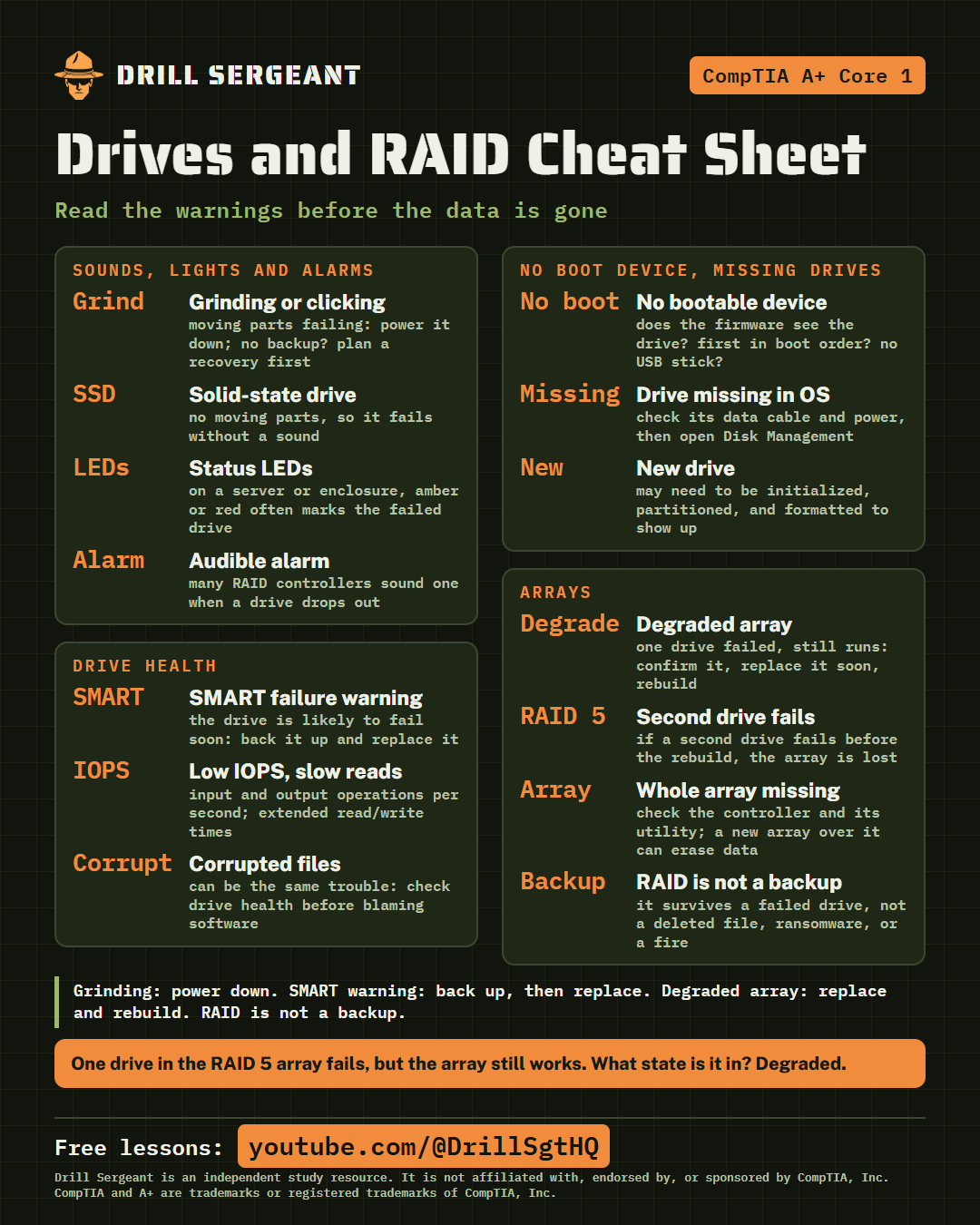
Troubleshooting Drives and RAID: Grinding and Clicking, S.M.A.R.T. Failure, Low IOPS, Bootable Device Not Found, Degraded and Missing Arrays cheat sheet
Cheat sheet as text

Drives and RAID Cheat Sheet
Read the warnings before the data is gone

Sounds, lights and alarms

  • Grind — Grinding or clicking: moving parts failing: power it down; no backup? plan a recovery first
  • SSD — Solid-state drive: no moving parts, so it fails without a sound
  • LEDs — Status LEDs: on a server or enclosure, amber or red often marks the failed drive
  • Alarm — Audible alarm: many RAID controllers sound one when a drive drops out

Drive health

  • SMART — SMART failure warning: the drive is likely to fail soon: back it up and replace it
  • IOPS — Low IOPS, slow reads: input and output operations per second; extended read/write times
  • Corrupt — Corrupted files: can be the same trouble: check drive health before blaming software

No boot device, missing drives

  • No boot — No bootable device: does the firmware see the drive? first in boot order? no USB stick?
  • Missing — Drive missing in OS: check its data cable and power, then open Disk Management
  • New — New drive: may need to be initialized, partitioned, and formatted to show up

Arrays

  • Degrade — Degraded array: one drive failed, still runs: confirm it, replace it soon, rebuild
  • RAID 5 — Second drive fails: if a second drive fails before the rebuild, the array is lost
  • Array — Whole array missing: check the controller and its utility; a new array over it can erase data
  • Backup — RAID is not a backup: it survives a failed drive, not a deleted file, ransomware, or a fire

Grinding: power down. SMART warning: back up, then replace. Degraded array: replace and rebuild. RAID is not a backup.

One drive in the RAID 5 array fails, but the array still works. What state is it in? Degraded.

Troubleshooting Video, Projector and Display Issues: No Signal, Fuzzy Image, Burn-In, Dead Pixels, Dim Image, Projector Bulb and Overheating cheat sheet
Cheat sheet as text

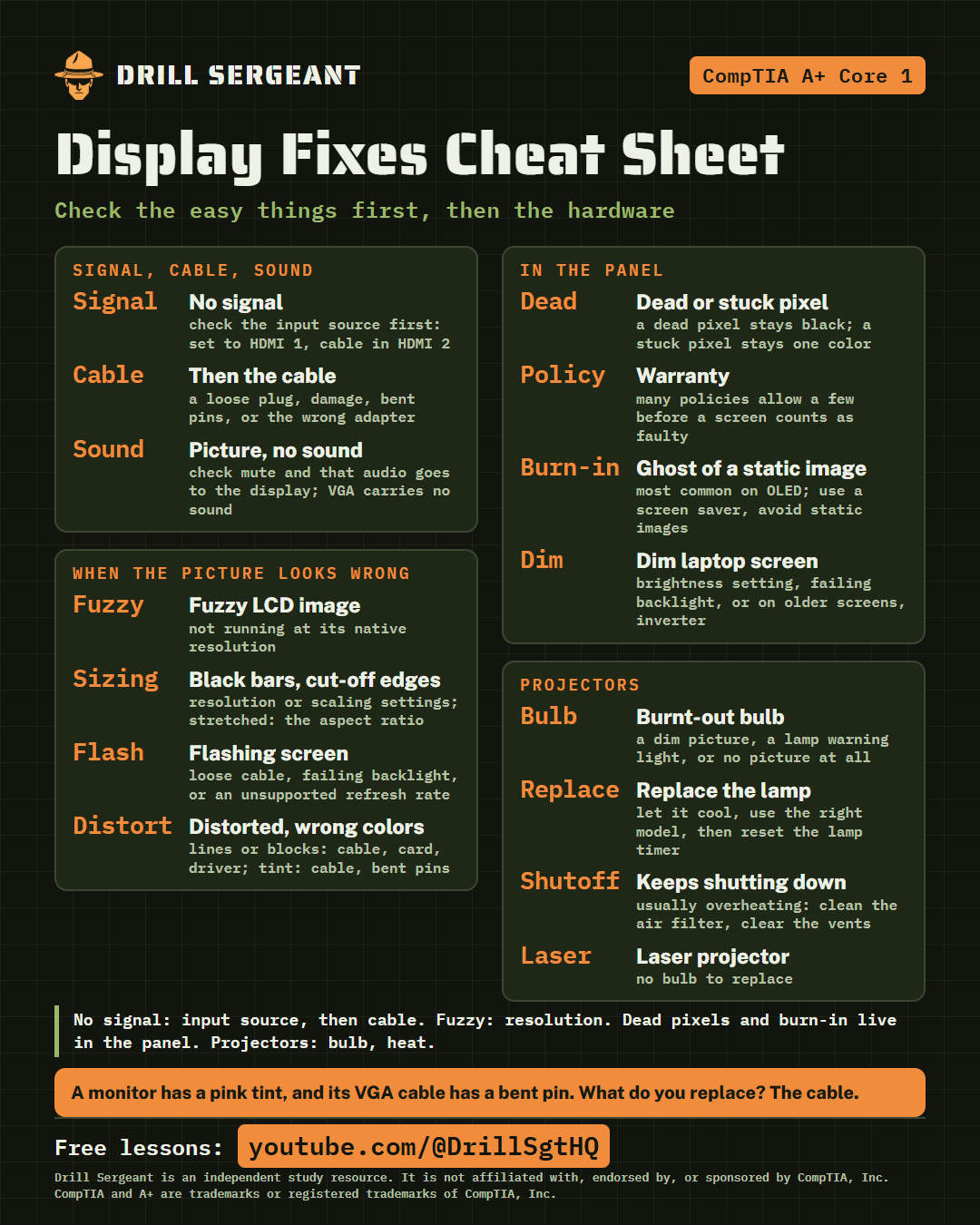
Display Fixes Cheat Sheet
Check the easy things first, then the hardware

Signal, cable, sound

  • Signal — No signal: check the input source first: set to HDMI 1, cable in HDMI 2
  • Cable — Then the cable: a loose plug, damage, bent pins, or the wrong adapter
  • Sound — Picture, no sound: check mute and that audio goes to the display; VGA carries no sound

When the picture looks wrong

  • Fuzzy — Fuzzy LCD image: not running at its native resolution
  • Sizing — Black bars, cut-off edges: resolution or scaling settings; stretched: the aspect ratio
  • Flash — Flashing screen: loose cable, failing backlight, or an unsupported refresh rate
  • Distort — Distorted, wrong colors: lines or blocks: cable, card, driver; tint: cable, bent pins

In the panel

  • Dead — Dead or stuck pixel: a dead pixel stays black; a stuck pixel stays one color
  • Policy — Warranty: many policies allow a few before a screen counts as faulty
  • Burn-in — Ghost of a static image: most common on OLED; use a screen saver, avoid static images
  • Dim — Dim laptop screen: brightness setting, failing backlight, or on older screens, inverter

Projectors

  • Bulb — Burnt-out bulb: a dim picture, a lamp warning light, or no picture at all
  • Replace — Replace the lamp: let it cool, use the right model, then reset the lamp timer
  • Shutoff — Keeps shutting down: usually overheating: clean the air filter, clear the vents
  • Laser — Laser projector: no bulb to replace

No signal: input source, then cable. Fuzzy: resolution. Dead pixels and burn-in live in the panel. Projectors: bulb, heat.

A monitor has a pink tint, and its VGA cable has a bent pin. What do you replace? The cable.

PRACTICE TESTS

Ready to drill it?

Practice tests for CompTIA A+ Core 1 and Core 2, every answer explained and checked against published sources. $19.95 for 30 days, plus sales tax where it applies; one payment, nothing renews.

See the 30-day pass

Drill Sergeant is an independent study resource. It is not affiliated with, endorsed by, or sponsored by CompTIA, Inc. CompTIA and A+ are trademarks or registered trademarks of CompTIA, Inc. Narration uses an AI-generated voice; every lesson is checked against published sources.