
What you will learn
- Why to check the input source and cable before anything else
- Fixing a fuzzy, wrongly sized or stretched picture
- What causes flashing screens and wrong colors
- Dead and stuck pixels, burn-in, and dim screens
- Projector bulbs, and why projectors shut down on their own
PRACTICE TESTS
Ready to drill it?
Practice tests for CompTIA A+ Core 1 and Core 2, every answer explained and checked against published sources. $19.95 for 30 days, plus sales tax where it applies; one payment, nothing renews.
See the 30-day passCheat sheet
Everything in this lesson on one page. Free to save, print and share.
Download the cheat sheet (PNG)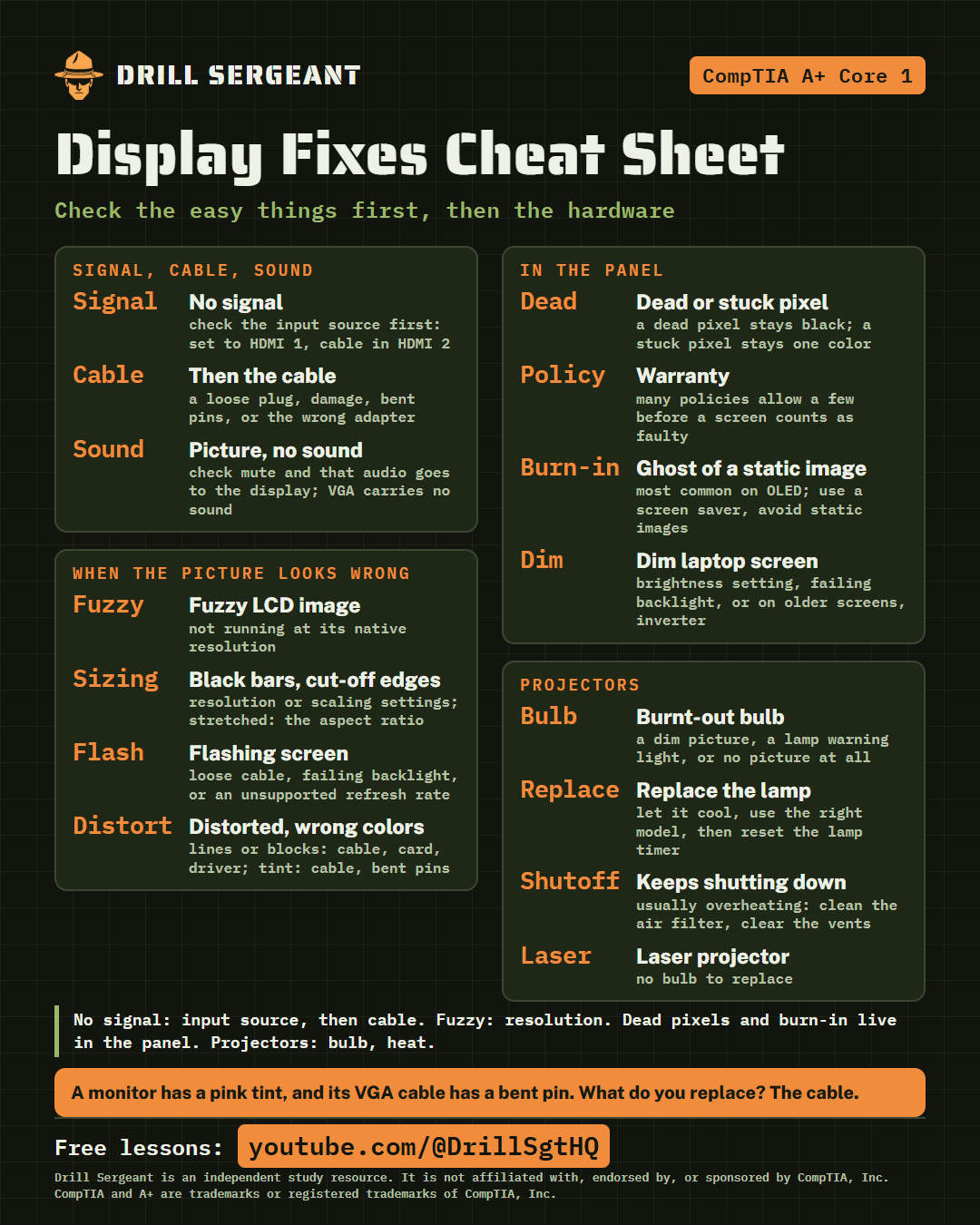
Cheat sheet as text
Display Fixes Cheat Sheet
Check the easy things first, then the hardware
Signal, cable, sound
- Signal — No signal: check the input source first: set to HDMI 1, cable in HDMI 2
- Cable — Then the cable: a loose plug, damage, bent pins, or the wrong adapter
- Sound — Picture, no sound: check mute and that audio goes to the display; VGA carries no sound
When the picture looks wrong
- Fuzzy — Fuzzy LCD image: not running at its native resolution
- Sizing — Black bars, cut-off edges: resolution or scaling settings; stretched: the aspect ratio
- Flash — Flashing screen: loose cable, failing backlight, or an unsupported refresh rate
- Distort — Distorted, wrong colors: lines or blocks: cable, card, driver; tint: cable, bent pins
In the panel
- Dead — Dead or stuck pixel: a dead pixel stays black; a stuck pixel stays one color
- Policy — Warranty: many policies allow a few before a screen counts as faulty
- Burn-in — Ghost of a static image: most common on OLED; use a screen saver, avoid static images
- Dim — Dim laptop screen: brightness setting, failing backlight, or on older screens, inverter
Projectors
- Bulb — Burnt-out bulb: a dim picture, a lamp warning light, or no picture at all
- Replace — Replace the lamp: let it cool, use the right model, then reset the lamp timer
- Shutoff — Keeps shutting down: usually overheating: clean the air filter, clear the vents
- Laser — Laser projector: no bulb to replace
No signal: input source, then cable. Fuzzy: resolution. Dead pixels and burn-in live in the panel. Projectors: bulb, heat.
A monitor has a pink tint, and its VGA cable has a bent pin. What do you replace? The cable.
Chapters
Exam objectives covered
- Core 1 (220-1201) objective 5.3, Hardware and Network Troubleshooting
Transcript
Read the full lesson narration
No signal, cables and sound
A blank or strange picture is usually a simple problem. Check the easy things first, then work toward the hardware.
Start with the signal. If the screen says no signal, check the input source first: the display may be set to the first HDMI input while the cable is in the second. Then check the cable itself, for a loose plug, damage, bent pins, or the wrong adapter. And if there's a picture but no sound, check that the display isn't muted, and that the computer sends its audio to the display. HDMI and DisplayPort carry sound; VGA does not.
Fuzzy, sized wrong, distorted, flashing, wrong colors
When the picture looks wrong, match the symptom. A fuzzy image on an LCD usually means it isn't running at its native resolution. Sizing issues, like black bars or cut-off edges, come from the resolution or scaling settings. A stretched image points to the aspect ratio. A distorted one, with lines or blocks, points to a damaged cable, the video card, or its driver. A flashing screen can mean a loose cable, a failing backlight, or a refresh rate the display doesn't support. And wrong colors, like a pink or green tint, often come from a damaged cable or bent pins, or the color settings.
Dead pixels, burn-in and dim screens
Some faults live in the panel itself. A dead pixel stays black, and a stuck pixel stays one color. Many warranty policies allow a few before a screen counts as faulty, so check yours before asking for a replacement. Burn-in is a ghost of a static image that won't go away. It's most common on OLED. To prevent it, use a screen saver, and avoid leaving static images up. And a dim laptop screen can be the brightness setting, a failing backlight, or on older screens, a failed inverter.
Projector bulbs and overheating
Projectors have two problems of their own. The lamp wears out, so a dim picture, a lamp warning light, or no picture at all can mean a burnt-out bulb. Let it cool, replace it with the right model, then reset the lamp timer. And a projector that keeps shutting down on its own is usually overheating. Clean the air filter, clear the vents, and give it room to breathe. Laser projectors have no bulb to replace.
Quick drill and recap
Drill time. Say the answer before I do. A projector shows no signal, but the laptop is on, connected, and sending video. What do you check first? The input source. Text on a new monitor looks fuzzy. Which setting is likely wrong? The resolution. A ghost of a news ticker stays on an OLED screen. What is that called? Burn-in. A dusty projector keeps shutting itself off after twenty minutes. What is the likely cause? Overheating. A monitor has a pink tint, and its VGA cable has a bent pin. What do you replace? The cable.
Lock in these four. One. No signal: the input source, then the cable. No sound: the audio output. Two. Fuzzy, wrongly sized, or stretched: resolution, scaling, and aspect ratio. Three. Dead pixels, burn-in, and a dim backlight live in the panel. Four. Projectors: a worn-out bulb, and overheating from a clogged filter.
That's troubleshooting video, projectors, and displays. Now go prove it. Practice questions are waiting for you in Drill Sergeant.
PRACTICE TESTS
Ready to drill it?
Practice tests for CompTIA A+ Core 1 and Core 2, every answer explained and checked against published sources. $19.95 for 30 days, plus sales tax where it applies; one payment, nothing renews.
See the 30-day passRelated lessons
Found a mistake in a lesson? Email support@drillsgthq.com with the lesson and what is wrong.
Drill Sergeant is an independent study resource. It is not affiliated with, endorsed by, or sponsored by CompTIA, Inc. CompTIA and A+ are trademarks or registered trademarks of CompTIA, Inc.