
What you will learn
- 3G, 4G and 5G, and switching cellular data and Wi-Fi on and off
- How a SIM differs from an eSIM
- The five steps to pair a Bluetooth accessory
- GPS vs cellular location, and per-app permissions
- What MDM does for corporate and BYOD phones, and how sync uses data
PRACTICE TESTS
Ready to drill it?
Practice tests for CompTIA A+ Core 1 and Core 2, every answer explained and checked against published sources. $19.95 for 30 days, plus sales tax where it applies; one payment, nothing renews.
See the 30-day passCheat sheet
Everything in this lesson on one page. Free to save, print and share.
Download the cheat sheet (PNG)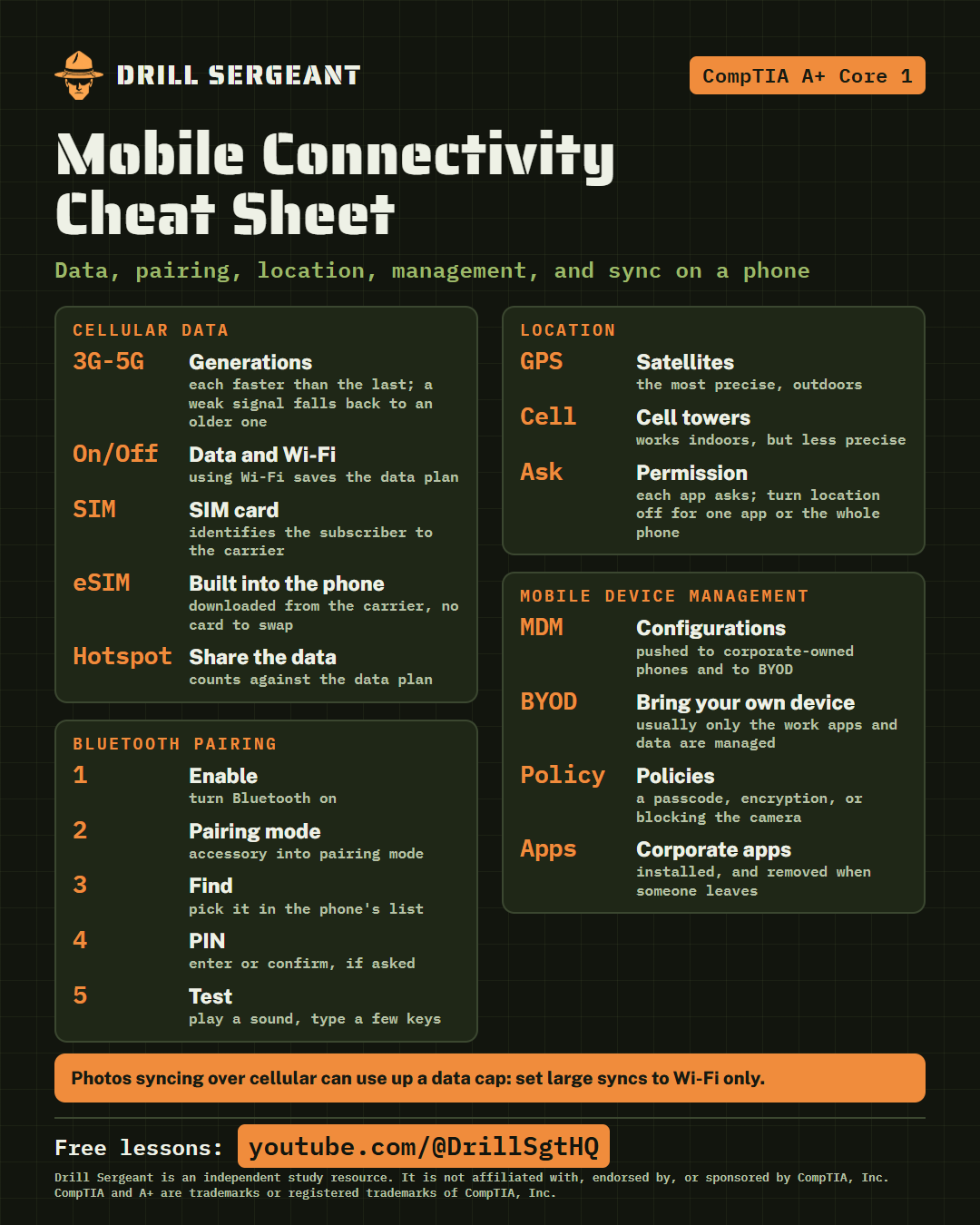
Cheat sheet as text
Mobile Connectivity Cheat Sheet
Data, pairing, location, management, and sync on a phone
Cellular data
- 3G-5G — Generations: each faster than the last; a weak signal falls back to an older one
- On/Off — Data and Wi-Fi: using Wi-Fi saves the data plan
- SIM — SIM card: identifies the subscriber to the carrier
- eSIM — Built into the phone: downloaded from the carrier, no card to swap
- Hotspot — Share the data: counts against the data plan
Bluetooth pairing
| Key | Meaning | Note |
|---|---|---|
| 1 | Enable | turn Bluetooth on |
| 2 | Pairing mode | accessory into pairing mode |
| 3 | Find | pick it in the phone's list |
| 4 | PIN | enter or confirm, if asked |
| 5 | Test | play a sound, type a few keys |
Location
- GPS — Satellites: the most precise, outdoors
- Cell — Cell towers: works indoors, but less precise
- Ask — Permission: each app asks; turn location off for one app or the whole phone
Mobile device management
- MDM — Configurations: pushed to corporate-owned phones and to BYOD
- BYOD — Bring your own device: usually only the work apps and data are managed
- Policy — Policies: a passcode, encryption, or blocking the camera
- Apps — Corporate apps: installed, and removed when someone leaves
Photos syncing over cellular can use up a data cap: set large syncs to Wi-Fi only.
Chapters
Exam objectives covered
- Core 1 (220-1201) objective 1.3, Mobile Devices
Transcript
Read the full lesson narration
Cellular data, SIM and eSIM
A phone is only useful when it's connected. Here's how to set up its data, pair its accessories, find its location, manage it for work, and keep it in sync.
Start with data. The cellular generations are 3G, 4G, and 5G, and each one is faster than the last. Where the newest signal is weak, the phone falls back to an older one. Cellular data and Wi-Fi each switch on and off in settings, and using Wi-Fi saves the data plan. The SIM card identifies the subscriber to the carrier. An eSIM does the same job, but it's built into the phone and downloaded from the carrier, with no card to swap. And the phone can share its data as a hotspot, which counts against the data plan.
Bluetooth pairing
Pairing Bluetooth follows five steps. Enable Bluetooth on the phone. Put the accessory into pairing mode. Find the device in the phone's list. Enter or confirm the PIN code, if one is asked for. Then test the connection, by playing a sound, or typing a few keys.
Location services
Location services tell apps where the phone is. GPS uses satellites, and it's the most precise, outdoors. Cellular location estimates the position from nearby cell towers. It works indoors, but it's less precise. Each app asks for permission to use location, and you can turn location off for one app, or for the whole phone.
Mobile device management
At work, mobile device management, MDM, controls the phones. It pushes device configurations, both to corporate-owned phones and to BYOD, bring your own device. On a personal phone, it usually manages only the work apps and data. It enforces policies, like a passcode, encryption, or blocking the camera. And it installs corporate applications, and removes them when someone leaves.
Synchronization and data caps
Finally, synchronization keeps the phone matched with everything else. Calendar and contacts sync through accounts, so a change on one device shows up on the others. Business apps, like mail and cloud storage, sync the same way. But syncing photos and files over cellular can use up a data cap, so watch the data limit, and set large syncs to Wi-Fi only.
Quick drill and recap
Drill time. Say the answer before I do. A traveler adds a phone plan without inserting any card. What does the phone use? An eSIM. A new headset doesn't appear in the phone's Bluetooth list. What step was likely skipped? Putting the headset into pairing mode. A hiking app needs the most precise position outdoors. Which location service does it use? GPS. A company must push email settings and require a passcode on every work phone. What does it use? MDM. A user hits a data cap after photos sync over cellular. Which sync setting fixes it? Syncing over Wi-Fi only.
Lock in these four. One. 3G, 4G, and 5G, data and Wi-Fi switches, and a SIM or an eSIM. Two. Bluetooth: enable it, pairing mode, find, PIN, and test. Three. GPS for precision, cell towers indoors, and permission per app. Four. MDM for configurations, policies, and corporate apps, and sync that watches the data cap.
That's mobile connectivity and app support. Now go prove it. Practice questions are waiting for you in Drill Sergeant.
PRACTICE TESTS
Ready to drill it?
Practice tests for CompTIA A+ Core 1 and Core 2, every answer explained and checked against published sources. $19.95 for 30 days, plus sales tax where it applies; one payment, nothing renews.
See the 30-day passRelated lessons
Found a mistake in a lesson? Email support@drillsgthq.com with the lesson and what is wrong.
Drill Sergeant is an independent study resource. It is not affiliated with, endorsed by, or sponsored by CompTIA, Inc. CompTIA and A+ are trademarks or registered trademarks of CompTIA, Inc.