
What you will learn
- What to check when there is no power, a burning smell or random shutdowns
- Why swollen capacitors mean replacing the motherboard
- Reading POST beep codes, and fixing a blank screen
- Crash screens, application crashes and testing memory
- Overheating, thermal throttling, fan noise and the CMOS battery
PRACTICE TESTS
Ready to drill it?
Practice tests for CompTIA A+ Core 1 and Core 2, every answer explained and checked against published sources. $19.95 for 30 days, plus sales tax where it applies; one payment, nothing renews.
See the 30-day passCheat sheet
Everything in this lesson on one page. Free to save, print and share.
Download the cheat sheet (PNG)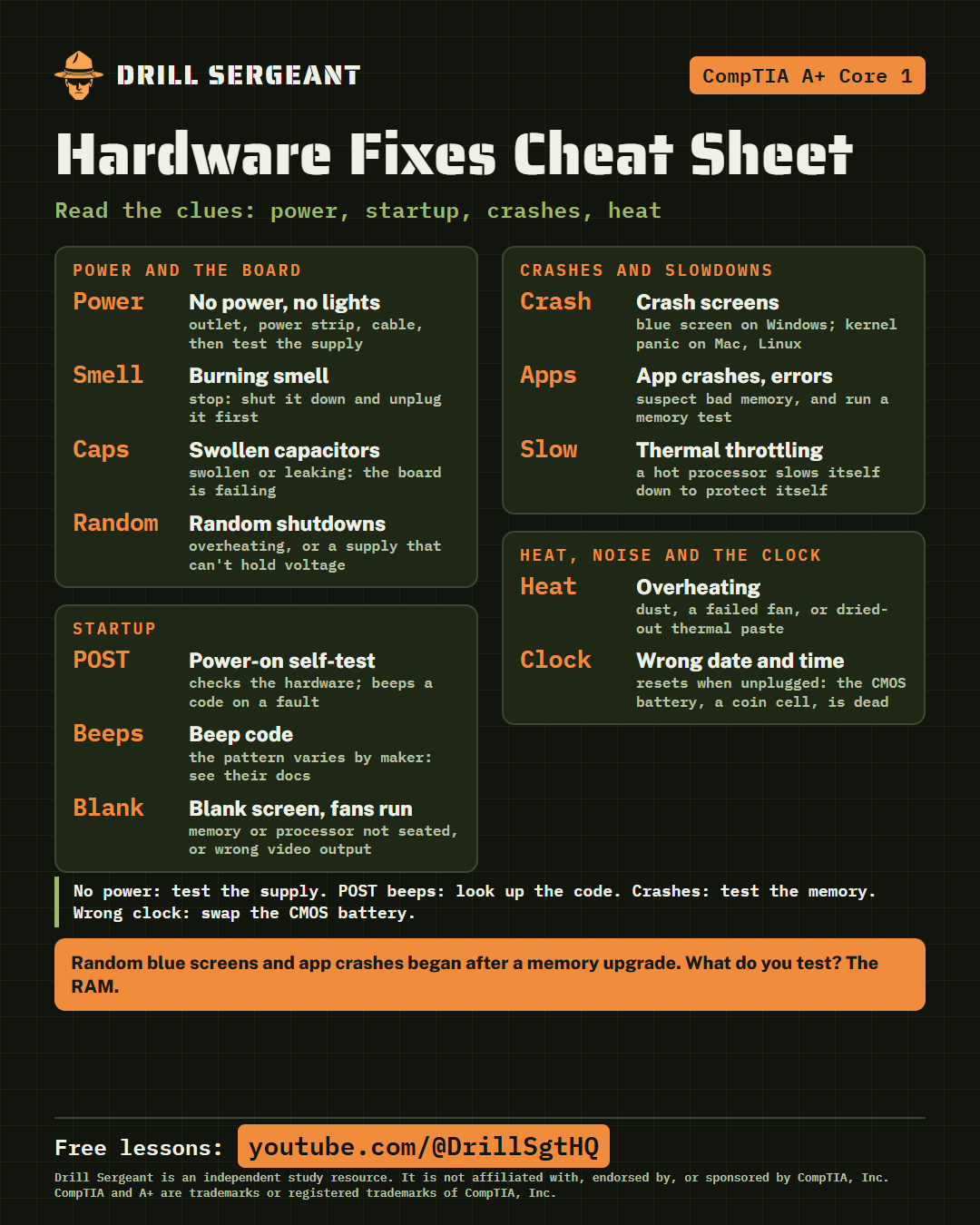
Cheat sheet as text
Hardware Fixes Cheat Sheet
Read the clues: power, startup, crashes, heat
Power and the board
- Power — No power, no lights: outlet, power strip, cable, then test the supply
- Smell — Burning smell: stop: shut it down and unplug it first
- Caps — Swollen capacitors: swollen or leaking: the board is failing
- Random — Random shutdowns: overheating, or a supply that can't hold voltage
Startup
- POST — Power-on self-test: checks the hardware; beeps a code on a fault
- Beeps — Beep code: the pattern varies by maker: see their docs
- Blank — Blank screen, fans run: memory or processor not seated, or wrong video output
Crashes and slowdowns
- Crash — Crash screens: blue screen on Windows; kernel panic on Mac, Linux
- Apps — App crashes, errors: suspect bad memory, and run a memory test
- Slow — Thermal throttling: a hot processor slows itself down to protect itself
Heat, noise and the clock
- Heat — Overheating: dust, a failed fan, or dried-out thermal paste
- Clock — Wrong date and time: resets when unplugged: the CMOS battery, a coin cell, is dead
No power: test the supply. POST beeps: look up the code. Crashes: test the memory. Wrong clock: swap the CMOS battery.
Random blue screens and app crashes began after a memory upgrade. What do you test? The RAM.
Chapters
Exam objectives covered
- Core 1 (220-1201) objective 5.1, Hardware and Network Troubleshooting
Transcript
Read the full lesson narration
Power problems
When the hardware itself fails, the symptoms point the way. Here are the clues CompTIA lists for motherboards, memory, processors, and power, and what each one usually means.
Start with power. No power at all, with no lights and no fans? Check the outlet, the power strip, the power cable, and the switch on the power supply, then test the supply itself. A burning smell means stop: shut the computer down and unplug it before you look for the cause. Swollen or leaking capacitors on the motherboard mean the board is failing, so plan to replace it. And random shutdowns point to overheating, or to a power supply that can't hold its voltage under load.
POST beeps and blank screens
At startup, the power-on self-test, or POST, checks the hardware. If it finds a fault before the screen works, it beeps a code. The pattern varies by maker, so look it up in the motherboard or computer maker's documentation. Many boards also have debug lights, or a small code display. A blank screen with the fans running often means memory or the processor isn't seated, or the monitor isn't connected to the right video output. Reseating the RAM is a quick, common fix.
Crash screens and sluggish performance
Crash screens are the operating system stopping itself, and each system has its own: a blue screen on Windows, a kernel panic on Mac and Linux, and on a Mac that hangs, a spinning pinwheel. When they come with application crashes and random errors, suspect bad memory, and run a memory test. Sluggish performance can be heat too. In thermal throttling, a hot processor slows itself down to protect itself.
Overheating, noise and the CMOS battery
Overheating has simple causes: dust, a failed fan, or dried-out thermal paste between the processor and its cooler. A fan that rattles or whines is an unusual noise worth fixing before it stops. And if the date and time reset whenever the computer is unplugged, the CMOS battery on the motherboard is dead. It's a coin cell, and easy to replace.
Quick drill and recap
Drill time. Say the answer before I do. A computer beeps a pattern at startup and shows nothing on screen. Where do you look up the meaning? The maker's documentation. The clock is wrong every time the computer is unplugged. What do you replace? The CMOS battery. A laptop slows down only under heavy load, and its bottom is hot. What is the processor doing? Thermal throttling. Random blue screens and app crashes began after a memory upgrade. What do you test? The RAM. A motherboard has swollen capacitors. What is the fix? Replace the motherboard.
Lock in these four. One. No power, a burning smell, or swollen capacitors: test the supply, stop and unplug, or replace the board. Two. POST beeps and a blank screen: look up the code, and reseat the RAM. Three. Crash screens and app crashes: test the memory. Four. Heat, noise, and a wrong clock: clean it, fix the fan, and swap the CMOS battery.
That's troubleshooting motherboards, memory, processors, and power. Now go prove it. Practice questions are waiting for you in Drill Sergeant.
PRACTICE TESTS
Ready to drill it?
Practice tests for CompTIA A+ Core 1 and Core 2, every answer explained and checked against published sources. $19.95 for 30 days, plus sales tax where it applies; one payment, nothing renews.
See the 30-day passRelated lessons
Found a mistake in a lesson? Email support@drillsgthq.com with the lesson and what is wrong.
Drill Sergeant is an independent study resource. It is not affiliated with, endorsed by, or sponsored by CompTIA, Inc. CompTIA and A+ are trademarks or registered trademarks of CompTIA, Inc.